
Artifacts
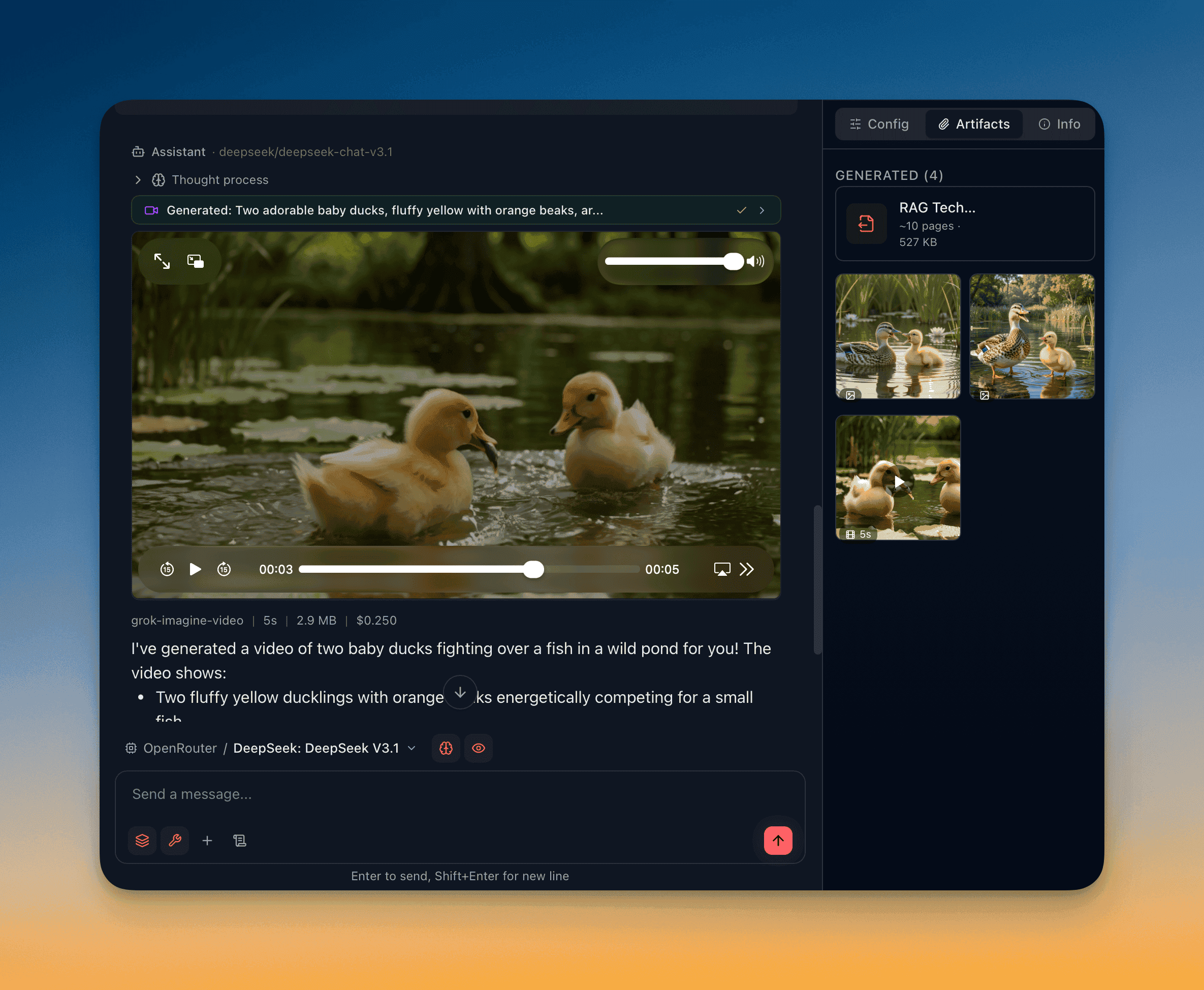
The Artifacts tab in the Info Panel (right sidebar) aggregates every file associated with a conversation — generated images, videos, and PDFs from tool calls, user-uploaded attachments, and indexed documents. It is one of three tabs in the Info Panel alongside Config and Info.
Open it with Cmd+I (or Ctrl+I) to toggle the Info Panel, then select the Artifacts tab.
Three sections
Section titled “Three sections”The Artifacts panel organizes content into three distinct sections:
| Section | What it contains | Layout |
|---|---|---|
| Generated | Images, videos, and PDFs produced by tool calls (image generation, video generation, save paper PDF) | 2-column grid for images/videos, list for PDFs |
| Attachments | Images uploaded by the user in this conversation | 2-column grid |
| Documents | Files added to the RAG pipeline — indexed, pending, or directly injected | Folder tree with collapsible directories |
When a conversation has no artifacts, the panel shows an empty state: “No artifacts yet — Generated images, videos, and attached files will appear here.”
Generated content
Section titled “Generated content”Generated items are extracted from completed tool call results across all messages in the conversation — including nested agent sub-tool calls. Three tool types produce artifacts:
| Tool | Artifact type | Metadata tracked |
|---|---|---|
image_generation | Image | model, size, prompt |
video_generation | Video | model, duration, size, cost |
save_paper_pdf | page count estimate, size |
Images and videos in the grid
Section titled “Images and videos in the grid”Generated images and videos display in a 2-column grid with aspect-square thumbnails.
Each thumbnail shows:
- The image or video preview (object-cover fill)
- A type badge in the bottom-left corner (image or video icon, plus duration for videos)
- A prompt tooltip on hover — the generation prompt (or model name as fallback), shown over a gradient overlay, line-clamped to 2 lines
Hover toolbar (top-right corner):
| Action | Images | Videos |
|---|---|---|
| Copy | Copies the image to clipboard as a bitmap | — |
| Download | Saves to your Downloads folder | Saves to your Downloads folder |
| Delete | Removes from disk and UI | Removes from disk and UI |
Click an image thumbnail to open it in a lightbox — a full-screen modal (up to 90% viewport) with the image at native resolution. Click a video thumbnail to open a video preview dialog with full playback controls and autoplay.
PDFs in the list
Section titled “PDFs in the list”Generated PDFs display as horizontal list items with a red file icon:
[FileOutput icon] research-summary.pdf ~12 pages · 48 KBHover actions:
- Open — opens the PDF in your default PDF viewer
- Reveal in Finder — shows the file in your file manager
- Delete — removes from disk
Inline rendering in tool call blocks
Section titled “Inline rendering in tool call blocks”Generated content also renders inline within the conversation, inside the tool call block that produced it. The inline view provides additional actions not available in the Artifacts panel:
Inline image actions (hover toolbar):
- Copy — copies to clipboard
- Download — saves to Downloads
- Add to chat — adds the generated image as a pending attachment in the composer, so you can send it back to the model in your next message (e.g., for iteration or analysis)
- Delete — removes from disk
- Drag-drop — drag the image out of QARK to any application that accepts image drops
Inline video actions:
- Download and Delete (no copy or add-to-chat for videos)
- Drag-drop supported
Inline PDF actions:
- Open in default viewer
- Reveal in Finder
Deletion is synchronized between the inline view and the Artifacts panel — deleting from either location removes the item from both.
User attachments
Section titled “User attachments”Images you attach to messages (via Add Images, clipboard, or drag-drop) appear in the Attachments section as a 2-column grid of thumbnails. Click any thumbnail to open it in the lightbox.
Actions:
- Delete (X icon on hover) — removes the attachment from the message and deletes the file from disk
Clear All Attachments — a button below the grid that removes every user attachment in the conversation. Uses a two-stage confirmation: click once to reveal Confirm/Cancel buttons, click Confirm to execute.
Orphan cleanup: On load, the panel checks whether each attachment file still exists on disk. If a file has been moved or deleted externally, QARK automatically cleans up the metadata and shows a notification: “Removed 1 document (file was deleted from disk).”
Indexed documents
Section titled “Indexed documents”The Documents section (rendered by a separate DocumentsList component) shows files added to the conversation’s RAG pipeline. Documents are grouped into a folder tree — collapsible directories that preserve the original file structure.
Document status badges
Section titled “Document status badges”Each document shows a color-coded status:
| Status | Color | Meaning |
|---|---|---|
| indexed | Green | Fully processed — chunked, embedded, and searchable |
| processing | Blue (pulsing) | Currently being processed |
| pending | Amber | Queued, waiting to start |
| direct | Primary | Below RAG threshold, injected directly into context |
| error | Red | Processing failed — error message shown below filename |
Folder headers
Section titled “Folder headers”Each directory in the tree shows:
- Folder name (collapsible with chevron)
- File count (“5 files”)
- Aggregate status indicator: red “err” badge if any file errored, green chunk count if all indexed, animated loader if processing
Document actions
Section titled “Document actions”- Right-click context menu on any document: Reveal in Finder, Delete Document
- Delete All Documents button with two-stage confirmation (same pattern as Clear All Attachments)
For details on how documents are processed and routed, see File Attachments & Auto-Routing and RAG Pipeline.
Actions by content type
Section titled “Actions by content type”| Action | Generated images | Generated videos | Generated PDFs | User attachments | Indexed documents |
|---|---|---|---|---|---|
| Preview / open | Lightbox | Video modal | Default app | Lightbox | — |
| Copy | Clipboard (bitmap) | — | — | — | — |
| Download | Downloads folder | Downloads folder | — | — | — |
| Add to chat | Composer attachment | — | — | — | — |
| Drag-drop | To other apps | To other apps | — | — | — |
| Delete | Disk + UI | Disk + UI | Disk + UI | Disk + metadata | Index + chunks |
| Reveal in Finder | — | — | File manager | — | File manager |
| Clear all | — | — | — | All attachments | All documents |