
The @Mention System
Type @ in the composer to activate tools, invoke MCP servers, and dispatch sub-agents — all from the same input field.
How it works
Section titled “How it works”When you type @ in the message composer, a mention popover appears. This popover lists every tool available to the current agent, organized by category. Start typing after @ to filter the list with autocomplete search. Select a tool to attach it to your message.
You can attach multiple tools per message. Each @mention adds a tool to the tool vector for that specific turn. The model can then call any of the attached tools during its response.
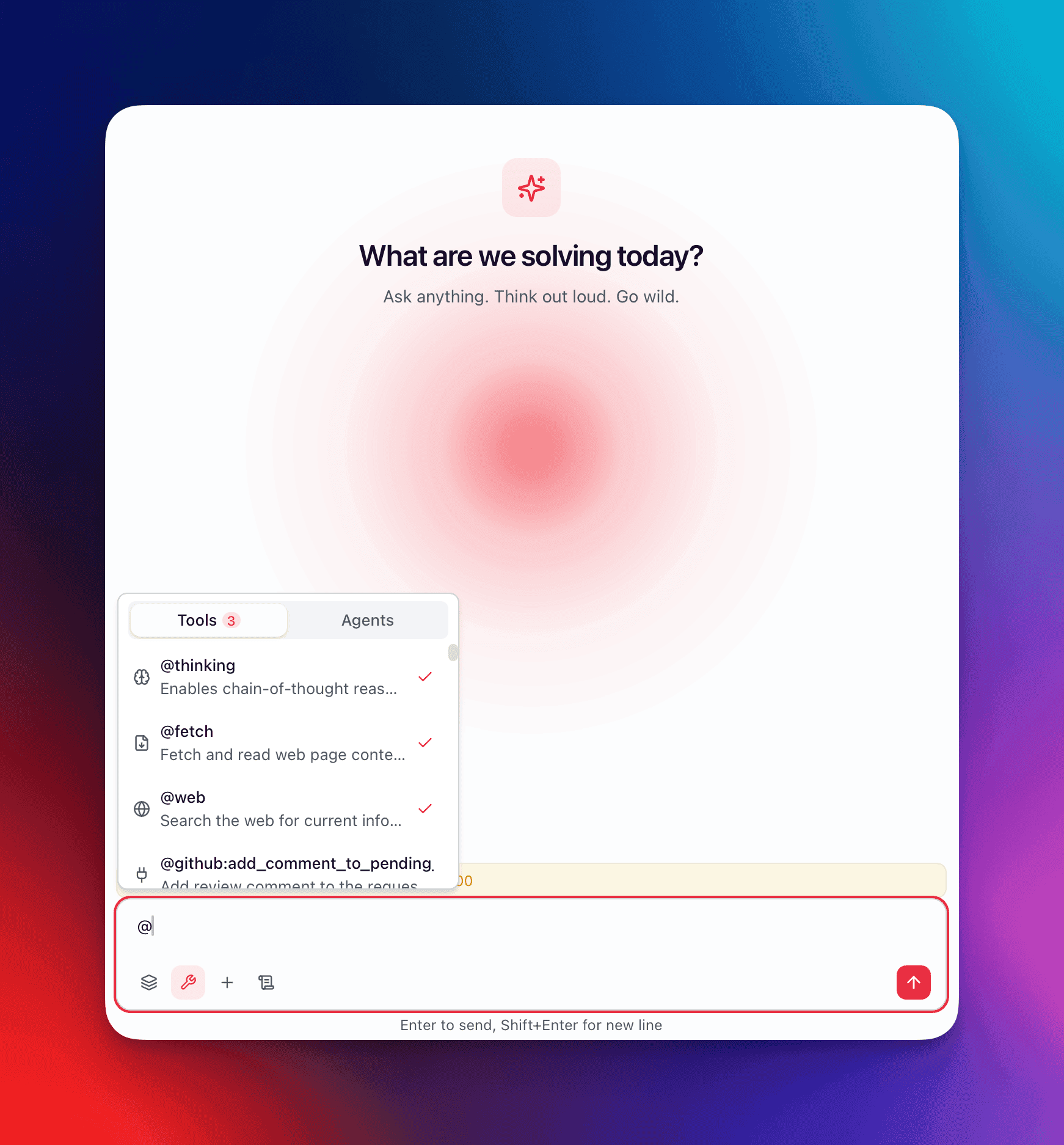
Tool categories
Section titled “Tool categories”The mention popover organizes tools into 3 categories, displayed in this order:
Built-in tools
Section titled “Built-in tools”These ship with QARK and require no configuration:
| Tool | Trigger | What it does |
|---|---|---|
| Thinking | @thinking | Allocates dedicated reasoning tokens before the model responds |
| Web Search | @web-search | Searches the web and returns structured results |
| Web Fetch | @web-fetch | Fetches and extracts content from a specific URL |
| Document Search | @document-search | Searches your indexed documents using vector similarity |
| Image Generation | @image-generation | Generates images via a configured image model |
| Video Generation | @video-generation | Generates video via a configured video model |
| Unix Commands | @unix-commands | Executes shell commands on your machine (sandboxed) |
| Combine Files | @combine-files | Merges multiple files into a single context block |
| Save Paper PDF | @save-paper-pdf | Downloads and saves an academic paper as PDF |
MCP tools
Section titled “MCP tools”Tools exposed by connected Model Context Protocol servers appear grouped by server. Each tool follows the naming format:
mcp:<server_id>:<tool_name>For example, if you have a “github” MCP server connected that exposes a list_issues tool, it appears as mcp:github:list_issues in the popover. MCP tools are grouped under their server name for visual clarity.
MCP tools only appear when the corresponding server is connected and healthy. If a server disconnects, its tools disappear from the popover until the connection is restored.
Agent-tools
Section titled “Agent-tools”Agent-tools are higher-level capabilities that dispatch sub-agents or execute multi-step workflows. They follow the naming format:
agent_tool:<id>Agent-tools are filtered by availability — they only appear in the popover if the current agent’s configuration permits them. An agent configured with a restricted tool vector will not display agent-tools that fall outside its allowed set.
Autocomplete and search
Section titled “Autocomplete and search”The popover supports instant search. Typing @web narrows the list to @web-search and @web-fetch. Typing @mcp:git shows only MCP tools from servers with “git” in their ID. The search matches against tool names, server IDs, and tool descriptions.
Use arrow keys to navigate the filtered list and Enter to select. The selected tool is inserted into the composer as a styled tag.
Tool turn limits
Section titled “Tool turn limits”When tools are active, the model can enter a tool loop — calling a tool, reading the result, and deciding whether to call another tool or respond. Turn limits prevent runaway loops:
| Active tool category | Max turns |
|---|---|
| Default (built-in tools only) | 10 |
| Unix commands | 20 |
| Agent-tools or MCP tools | 50 |
The highest applicable limit takes effect. If you attach both @web-search (built-in, 10 turns) and an MCP tool (50 turns), the limit is 50 for that message.
When the turn limit is reached, the kernel stops the tool loop and returns the model’s most recent output along with a notice indicating truncation.
Special tool behaviors
Section titled “Special tool behaviors”Thinking tool
Section titled “Thinking tool”@thinking is unique. It does not call an external service — it instructs the model to allocate dedicated reasoning tokens before producing a visible response. When thinking is active, it affects the enabled_tools toggle: the thinking allocation is managed separately from the tool call loop.
Locked tools
Section titled “Locked tools”Some agents have locked tools — tools that are required by the agent’s configuration and cannot be disabled. These appear in the popover with a lock indicator. You cannot remove a locked tool from the tool vector for that conversation.
Locked tools exist because certain agents depend on specific tools to function. A “Code Assistant” agent might lock @unix-commands because its system prompt references file system access. Removing that tool would break the agent’s intended behavior.
Attaching tools vs. agent defaults
Section titled “Attaching tools vs. agent defaults”There are two ways tools become part of a message’s tool vector:
- Agent defaults: The agent assigned to the conversation defines a default tool set. These tools are available on every turn without requiring
@mention. - @mention attachment: You explicitly add tools via the mention system. These are added on top of the agent defaults for that specific turn.
If the agent’s default tool set already includes @web-search, mentioning @web-search again has no effect — it is already in the vector. The mention system is additive: it can add tools the agent does not include by default, but it cannot remove tools the agent requires.
To permanently change which tools an agent uses, modify the agent’s configuration in Settings. To temporarily add a tool for a single turn, use @mention.