
File Attachments & Auto-Routing
QARK supports five ways to attach content to a message. Each attachment is automatically routed to the most effective processing path based on the file type, model capabilities, and context window utilization.
Attachment methods
Section titled “Attachment methods”The attachment menu in the composer provides five options:
| Method | What it does |
|---|---|
| Add Images | Native file picker filtered to image types (JPEG, PNG, GIF, WebP, BMP, SVG, ICO, TIFF) |
| Add Files | Native file picker for documents and code — PDF, DOCX, XLSX, PPTX, Markdown, HTML, plain text, and 80+ programming languages |
| Add Folder | Directory picker that recursively scans for all supported files, auto-excluding build artifacts (node_modules, .git, __pycache__, dist, target, venv, etc.) |
| Add Selected in Finder | Grabs whatever files or folders are currently selected in macOS Finder — no file picker dialog needed |
| Clipboard History | Browse the last 50 clipboard entries (text, images, and file paths) and attach any of them |
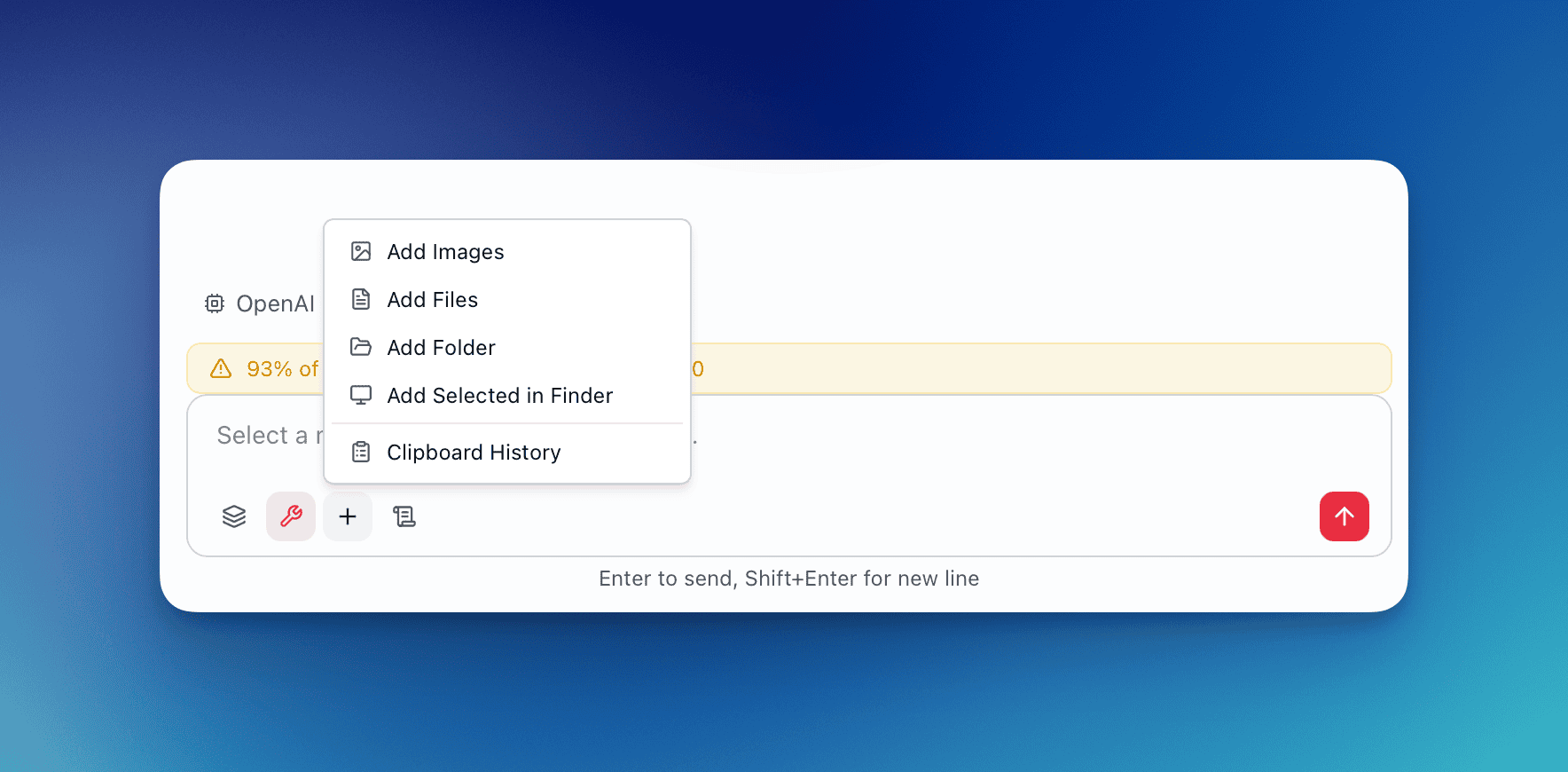
Image routing: vision vs RAG
Section titled “Image routing: vision vs RAG”When you attach images, QARK decides whether to send them as visual content (vision path) or extract their text and process them as documents (RAG path). This decision is automatic and depends on three factors: model capability, image count, and total payload size.
Vision path
Section titled “Vision path”The image is sent directly to the model as a visual attachment. The model sees the actual image — pixels, layout, charts, handwriting, screenshots — and can describe, analyze, or extract information from it.
All three conditions must be true:
- The conversation’s model supports vision (Claude, GPT-4o, Gemini, etc.)
- Total images in the message (existing + new) ≤ 3
- Total image payload ≤ 50 MB
RAG path (fallback)
Section titled “RAG path (fallback)”The image is processed as a document instead. QARK extracts text content from the image (using a configurable image extraction model) and routes the extracted text through the standard document pipeline — direct injection or RAG depending on size.
Every scenario, mapped out
Section titled “Every scenario, mapped out”In the main conversation (ChatInput):
| Scenario | What happens |
|---|---|
| 1 image, vision model | Vision — image sent directly to model |
| 3 images, vision model, under 50 MB | Vision — all 3 sent as visual attachments |
| 4 images, vision model | RAG — exceeds 3-image limit, all 4 extracted as text documents |
| 2 images, non-vision model (e.g., older text-only model) | RAG — model cannot process images, text extracted |
| 1 image + 2 PDFs, vision model | Split — image goes vision, PDFs go document path |
| 5 images + 3 code files, vision model | RAG — exceeds image limit, all files (images + code) routed as documents |
| 2 large screenshots totaling 60 MB, vision model | RAG — exceeds 50 MB payload limit |
In the overlay (OverlayInput):
The same routing logic applies. The overlay uses the same routeImages() function as the main conversation.
| Scenario | What happens |
|---|---|
| Drag 1 screenshot into overlay, vision model | Vision — sent as visual attachment |
| Paste image from clipboard, vision model | Vision — clipboard image routed through vision |
| Attach 4 images via clipboard history, vision model | RAG — exceeds 3-image limit |
| Attach image, non-vision Spark model | RAG — text extraction fallback |
From Finder selection (Add Selected in Finder):
| Scenario | What happens |
|---|---|
| Select 2 PNGs in Finder | Vision — pure image selection, under limit |
| Select 4 PNGs in Finder | RAG — exceeds 3-image limit, all treated as documents |
| Select 1 PNG + 1 PDF in Finder | All documents — mixed content, everything goes to document path (including the PNG) |
| Select a folder containing images and code | All documents — folder contents always go to document path |
From clipboard history:
| Scenario | What happens |
|---|---|
| Attach 1 copied image from history, vision model | Vision — single image, capable model |
| Attach 2 images + 1 text entry from history | Split — images to vision (if model supports it and ≤ 3), text inserted into message |
| Attach copied file paths from history | Documents — files read from disk, routed through document pipeline |
Key behaviors
Section titled “Key behaviors”- Vision is all-or-nothing per batch: if you attach 4 images at once through Add Images, all 4 go to RAG. You cannot split 3 to vision and 1 to RAG within a single attachment action.
- Mixed file types force document path for images: attaching 1 image + 1 PDF through Finder selection sends the image through the document path too — not vision.
- Switching models changes routing: if you switch from a vision model to a text-only model mid-conversation, previously vision-routed images are already stored. New image attachments will route to RAG.
- The overlay and main app use identical logic: there is no difference in routing behavior between the overlay and the main conversation composer.
Document routing: direct injection vs RAG
Section titled “Document routing: direct injection vs RAG”Documents (including images that fell back from the vision path) go through text extraction, then either direct injection or the full RAG pipeline depending on size. See auto-routing below.
Supported file types
Section titled “Supported file types”Images (vision)
Section titled “Images (vision)”JPEG, PNG, GIF, WebP, BMP, SVG, ICO, TIFF — up to 20 MB per image, 3 per message.
Documents
Section titled “Documents”Structured documents: PDF, DOCX, XLSX, PPTX, EPUB
Markup and text: Markdown, HTML, reStructuredText, LaTeX, AsciiDoc, RTF, plain text, CSV, TSV, JSON, YAML, TOML, XML, INI, .env, .log
Programming languages: Python, JavaScript, TypeScript, Rust, Go, Java, C/C++, Ruby, PHP, Swift, Kotlin, Shell (sh/bash/zsh/fish/PowerShell), SQL, R, Lua, Perl, Scala, Zig, Nim, Dart, Elixir, Erlang, Clojure, Haskell, OCaml, F#, Julia, Objective-C, D, Pascal, Groovy, Terraform — and framework files like Vue, Svelte, Astro, GraphQL, Protocol Buffers.
Notebooks: Jupyter (.ipynb)
Limits: 100 MB per file, 10 GB total across all attached documents.
Folder scanning exclusions
Section titled “Folder scanning exclusions”When you attach a folder, QARK skips directories that contain build output, dependencies, or caches:
node_modules, .git, __pycache__, .next, .nuxt, .svelte-kit, dist, build, out, .output, target, .cache, .turbo, vendor, venv, .venv, env, .tox, coverage, .nyc_output, .pytest_cache, .mypy_cache, .DS_Store, Thumbs.db, .idea, .vscode
Relative paths within the folder structure are preserved in the UI so you can see which subfolder each file came from.
Auto-routing: direct injection vs RAG
Section titled “Auto-routing: direct injection vs RAG”When documents are attached, QARK decides how to deliver their content to the model. This happens automatically based on the RAG threshold — a percentage of the model’s context window (default: 30%).
How routing works
Section titled “How routing works”- QARK estimates the total token count of all attached documents (~4 characters = 1 token)
- It calculates the threshold:
context_window × threshold_pct - It calculates the available budget:
context_window − system_prompt − history − max_output
Three outcomes:
| Mode | Condition | Behavior |
|---|---|---|
| Direct injection | Total doc tokens ≤ threshold AND ≤ available budget | All document text is injected into the system prompt. The model sees the full content on every turn without needing the @document-search tool. |
| RAG | Total doc tokens > threshold | Documents are chunked, embedded as vectors, and indexed. The @document-search tool is auto-enabled. The model retrieves relevant chunks per query. |
| Mixed | Some documents fit under the threshold, others don’t | Small documents are injected directly. Large documents go through the RAG pipeline. @document-search is enabled for the RAG’d documents. |
Example
Section titled “Example”Using Claude Sonnet 4.6 with a 200K context window and the default 30% threshold:
- Threshold: 60,000 tokens
- 5-page PDF (~3,000 tokens): Direct injection — the full text appears in the system prompt
- 200-page research paper (~120,000 tokens): RAG — chunked, embedded, searchable via
@document-search - Both attached together: Mixed — the small PDF is injected, the large paper goes through RAG
Configuring the threshold
Section titled “Configuring the threshold”The RAG threshold is configurable at two levels:
- Per-conversation — In the Config tab under Advanced → RAG Overrides → Threshold %
- Globally — In Settings → Tools & MCP → RAG settings
Set it lower (e.g., 10%) to push more documents through RAG. Set it higher (e.g., 50%) to inject more content directly. Direct injection gives the model full visibility but consumes context window space. RAG preserves context budget but requires the model to search for relevant sections.
For more on the RAG pipeline itself — search strategies, reranking, citations — see RAG Pipeline.
Clipboard history
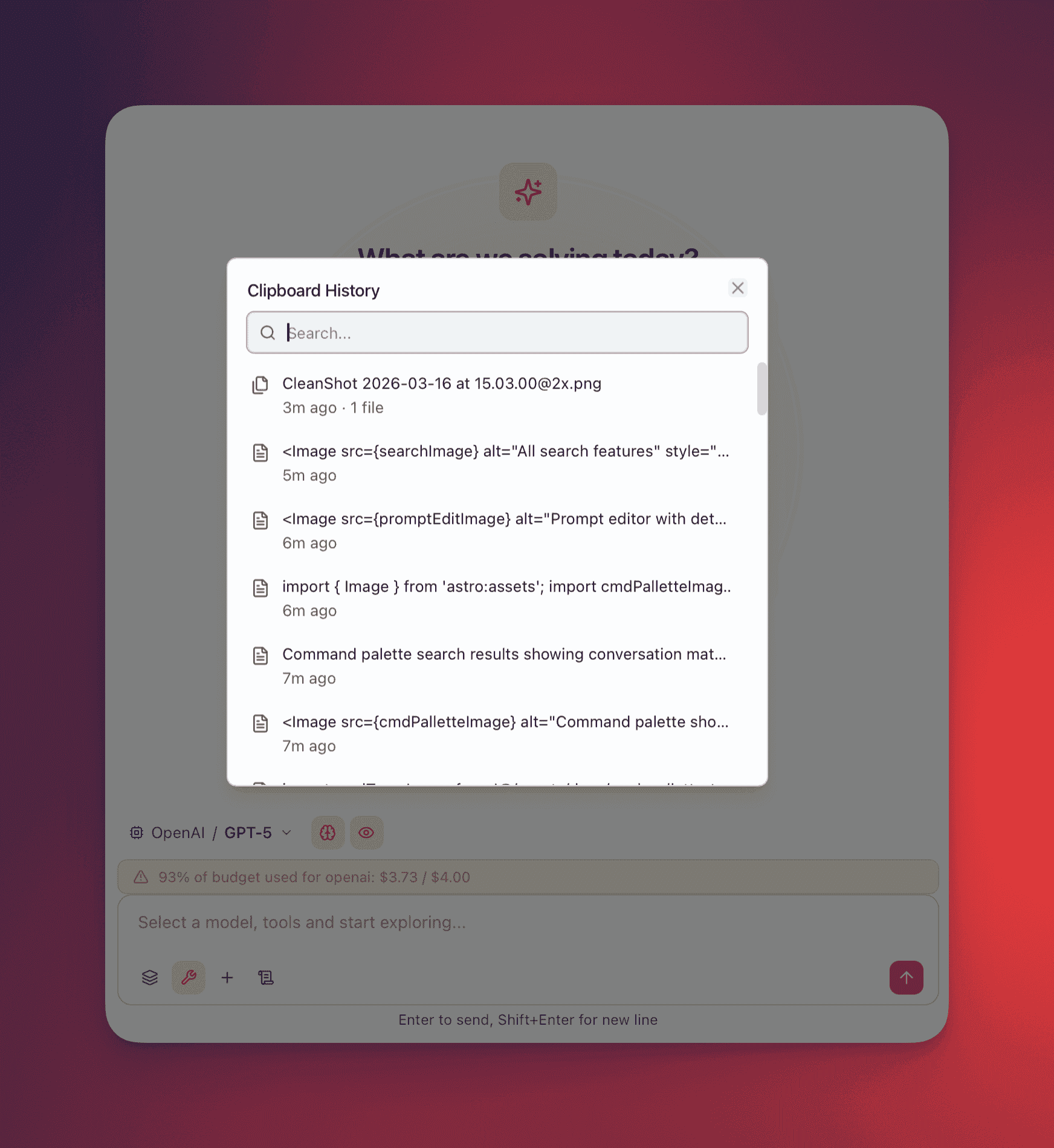
Section titled “Clipboard history”QARK continuously monitors your system clipboard and maintains a searchable history of the last 50 entries. Anything you copy — text, images, files — is captured and available to attach to any conversation or Spark.
How the monitor works
Section titled “How the monitor works”- Starts automatically on app launch (macOS, Windows, and Linux)
- Polls the system clipboard every 2 seconds
- Deduplicates entries by content hash — copying the same text twice does not create a duplicate
- Stores entries in memory only — history clears on app restart
- Detection priority: file paths first, then images, then text
What it captures
Section titled “What it captures”| Content type | Captured data | Picker display |
|---|---|---|
| Text | First 200 characters as preview | Text snippet + relative timestamp (“2m ago”) |
| Images | JPEG thumbnail (200px) + full-resolution PNG | Thumbnail (40×40px) + dimensions (“1920×1080”) + timestamp |
| File paths | Absolute paths from Finder/Explorer copies, folders expanded recursively | Filename list (up to 3 shown, “+N more” for the rest) + file count + timestamp |
The clipboard picker
Section titled “The clipboard picker”Open the clipboard picker from:
- Attachment menu → Clipboard History (in both main composer and the overlay)
- Command palette (Cmd+K) → search “clipboard”
The picker is a modal dialog with:
- Search field (auto-focused) — filters entries by preview text
- Entry list (max 350px, scrollable) — each entry shows its type icon, preview, and timestamp
- Multi-select — click entries to toggle selection, selected entries highlight with a primary color border
- Attach button — appears when one or more entries are selected, shows count (“Attach 3 items”)
Routing on attach
Section titled “Routing on attach”When you attach entries from clipboard history, each entry routes independently:
- Text entries → inserted directly into the message composer as text
- Image entries → vision path (if model supports vision, ≤ 3 images, ≤ 50 MB) or RAG path (otherwise)
- File path entries → document path (direct injection or RAG based on size threshold)
Clipboard history vs overlay auto-capture
Section titled “Clipboard history vs overlay auto-capture”These are two separate features:
- Overlay auto-capture: When you trigger the overlay (Cmd+Option+Space / Ctrl+Alt+Space), it simulates a copy command to grab whatever text is currently selected in your active app. This captured text appears in the overlay’s clipboard preview area. This is a one-time capture of the current selection.
- Clipboard history: A browsable archive of your last 50 clipboard operations. You open it manually via the attachment menu. You can select multiple entries and attach them to the current message.
Both features are available in the overlay — the auto-capture happens on trigger, and clipboard history is accessible from the overlay’s attachment menu.
Add Selected in Finder
Section titled “Add Selected in Finder”On macOS, this option reads the current Finder selection via native integration. No dialog appears — it immediately grabs whatever is selected.
Routing logic for Finder selections:
- If the selection contains only images (≤ 3): routed to the vision path
- If the selection contains any non-image files, or more than 3 images: everything goes to the document path
Selected folders are recursively scanned with the same exclusion rules as Add Folder.
How attachments are stored
Section titled “How attachments are stored”| Data | Location |
|---|---|
| Image files | {dataDir}/attachments/{conversationId}/{messageId}/{filename} on disk |
| Image metadata | messages.metadata JSON field (filename, media type, size, path) |
| Document text + chunks | documents table in SQLite |
| Vector embeddings | Local vector store |
| Clipboard history | In-memory (50 entries, cleared on app restart) |
All attachment data stays on your machine. Image and document files are never sent to QARK infrastructure — only to the AI provider when you send a message. See Privacy Model for the full data residency breakdown.