
Fine-Grained Control
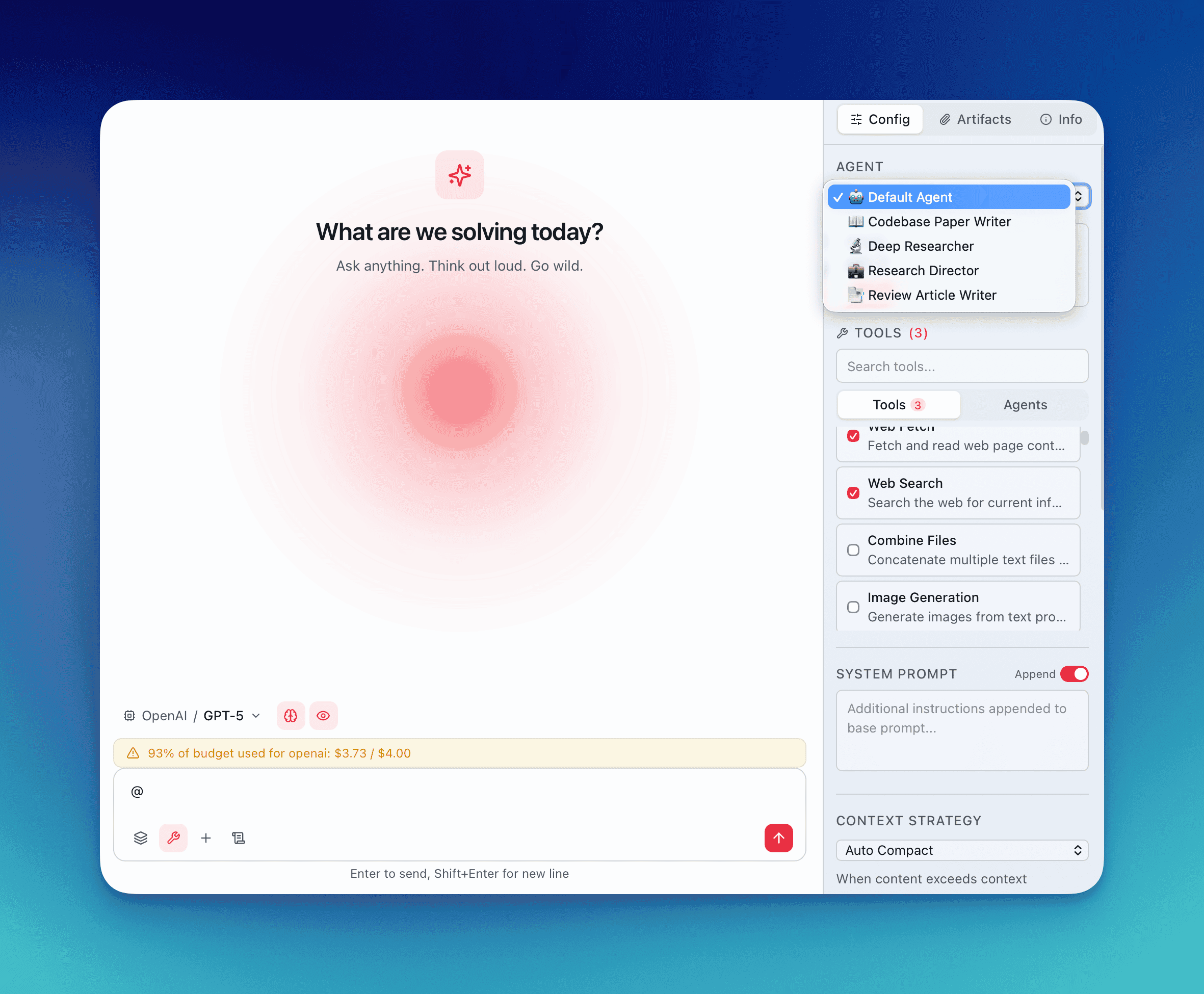
Every conversation inherits defaults from its assigned agent. The Config tab in the Info Panel exposes 20+ parameters you can override per conversation — without affecting other conversations or global settings.
Open the Config Tab
Section titled “Open the Config Tab”Select any conversation, then open the Info Panel (the sidebar on the right). Switch to the Config tab. Every parameter you change here applies only to this conversation.
ConfigOverrides: The Override System
Section titled “ConfigOverrides: The Override System”When you change a parameter in the Config tab, QARK creates a ConfigOverride for that conversation. The override sits on top of the agent’s defaults — only the fields you touch get overridden. Everything else falls through to the agent configuration.
Visual override dots appear next to any parameter that differs from the agent’s default, so you can tell at a glance what you have customized.
All changes are debounce-saved with a 400ms delay — type or adjust freely without worrying about save timing.
Agent Selector
Section titled “Agent Selector”Pick from your default agent or any custom agent you have built. Switching agents updates the baseline configuration for the conversation. If an agent requires specific tools, those tools are auto-enabled when you select it.
Model and Provider Picker
Section titled “Model and Provider Picker”Choose any model from any configured provider. The model registry drives this list — it shows model names, context window sizes, max output token limits, speed ratings, and intelligence ratings. Switch from Claude Sonnet 4.6 to GPT-5.4 to a local Ollama model mid-conversation.
System Prompt
Section titled “System Prompt”Two modes control how your custom system prompt interacts with the agent’s built-in prompt:
- Append mode — Your text is added after the agent’s system prompt. The agent’s instructions remain intact.
- Replace mode — Your text completely overrides the agent’s system prompt. Use this when you need full control over the model’s behavior.
Temperature and Max Tokens
Section titled “Temperature and Max Tokens”- Temperature — Controls randomness.
0.0produces deterministic output.1.0introduces significant variation. Most coding tasks benefit from0.0–0.3. Creative writing tasks often work better at0.7–1.0. - Max tokens — Caps the model’s response length. The model registry defines the ceiling for each model; you can set any value up to that ceiling.
Thinking Toggle
Section titled “Thinking Toggle”Enable or disable chain-of-thought thinking. When the model supports native thinking parameters (like Anthropic’s extended thinking), QARK passes the appropriate parameters directly to the API. The thinking output appears in collapsible thinking blocks within the conversation.
Enabled Tools
Section titled “Enabled Tools”The tools section displays every available tool with checkboxes. Tools are organized into groups:
- Built-in tools — File operations, web search, code execution, and others bundled with QARK
- MCP tools — Grouped by their parent MCP server, so you can see which server provides each tool
Use the search field to filter tools by name when the list is long. Enable or disable individual tools to control exactly what the model can access in this conversation.
Context Strategy Selector
Section titled “Context Strategy Selector”The context strategy determines how QARK manages the conversation history sent to the model. Select a strategy, then configure its sub-parameters:
- N value — How many recent messages to include (for sliding-window strategies)
- Token limit — Maximum token count for the context payload
- Overflow strategy — What happens when context exceeds the limit: truncate oldest messages, summarize, or compact
Dynamic LLM Parameters
Section titled “Dynamic LLM Parameters”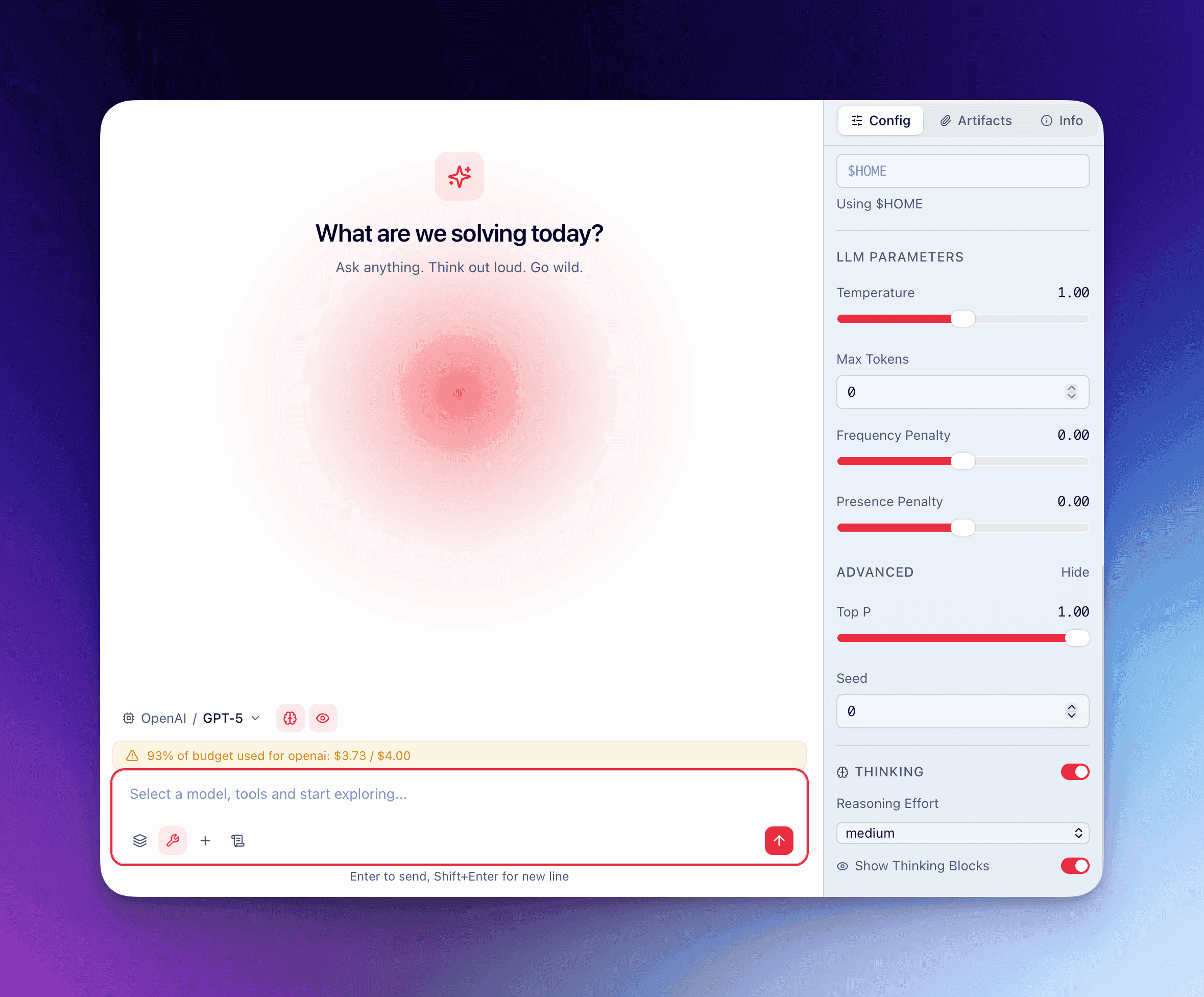
QARK’s model registry defines which parameters each model supports. The Config tab dynamically renders controls based on the ui_widget field in the registry:
| Parameter | Type | UI Control | Typical Range |
|---|---|---|---|
top_p | float | Slider | 0.0–1.0 |
top_k | integer | Number input | 1–100 |
frequency_penalty | float | Slider | -2.0–2.0 |
presence_penalty | float | Slider | -2.0–2.0 |
reasoning_effort | enum | Dropdown | low / medium / high |
seed | integer | Number input | Any integer |
min_p | float | Slider | 0.0–1.0 |
If a model does not support a parameter, the control does not appear. No guesswork about what works where.
Advanced Parameters Section
Section titled “Advanced Parameters Section”The advanced section is collapsed by default to reduce visual noise. Expand it to access:
RAG Overrides
Section titled “RAG Overrides”Override the retrieval-augmented generation pipeline for this conversation:
- Embedding model — Which model generates vector embeddings for document chunks
- RAG generation model — Which model synthesizes answers from retrieved context
- Reranker — Which reranking model scores retrieved chunks for relevance
- Threshold % — Minimum relevance score (0–100) for a chunk to be included in context
Image and Video Generation Model Overrides
Section titled “Image and Video Generation Model Overrides”Select which generation model handles image or video creation requests in this conversation. Useful when comparing generation quality across providers without changing agent configuration.
Unix Working Directory
Section titled “Unix Working Directory”Set the filesystem path the model uses as its working directory for file operations and code execution. Defaults to your project root but can be pointed at any directory on your machine.
Agent-Tool Overrides
Section titled “Agent-Tool Overrides”For each tool an agent uses, you can override:
- Which sub-tools are available to the agent-tool
- System prompt for that specific tool invocation
- Provider and model — Route a specific tool through a different model than the conversation default
- LLM parameters — Set distinct temperature, top_p, or other parameters for that tool
This gives you layered control: conversation-level defaults, with per-tool exceptions where needed.
Override Dots
Section titled “Override Dots”Every parameter in the Config tab shows a small dot indicator when its value differs from the agent’s default. This visual system lets you:
- Scan the Config tab to see what you have customized
- Reset individual overrides back to the agent default
- Understand exactly how this conversation differs from the baseline
How Overrides Resolve
Section titled “How Overrides Resolve”The resolution order is:
- Agent-tool override (most specific) — applies to a single tool within the conversation
- Conversation ConfigOverride — applies to the entire conversation
- Agent defaults — the baseline configuration from the selected agent
- Global defaults — QARK’s built-in fallback values
Each layer only specifies the fields it cares about. Everything else passes through to the next layer down.