
Message Rendering & Actions
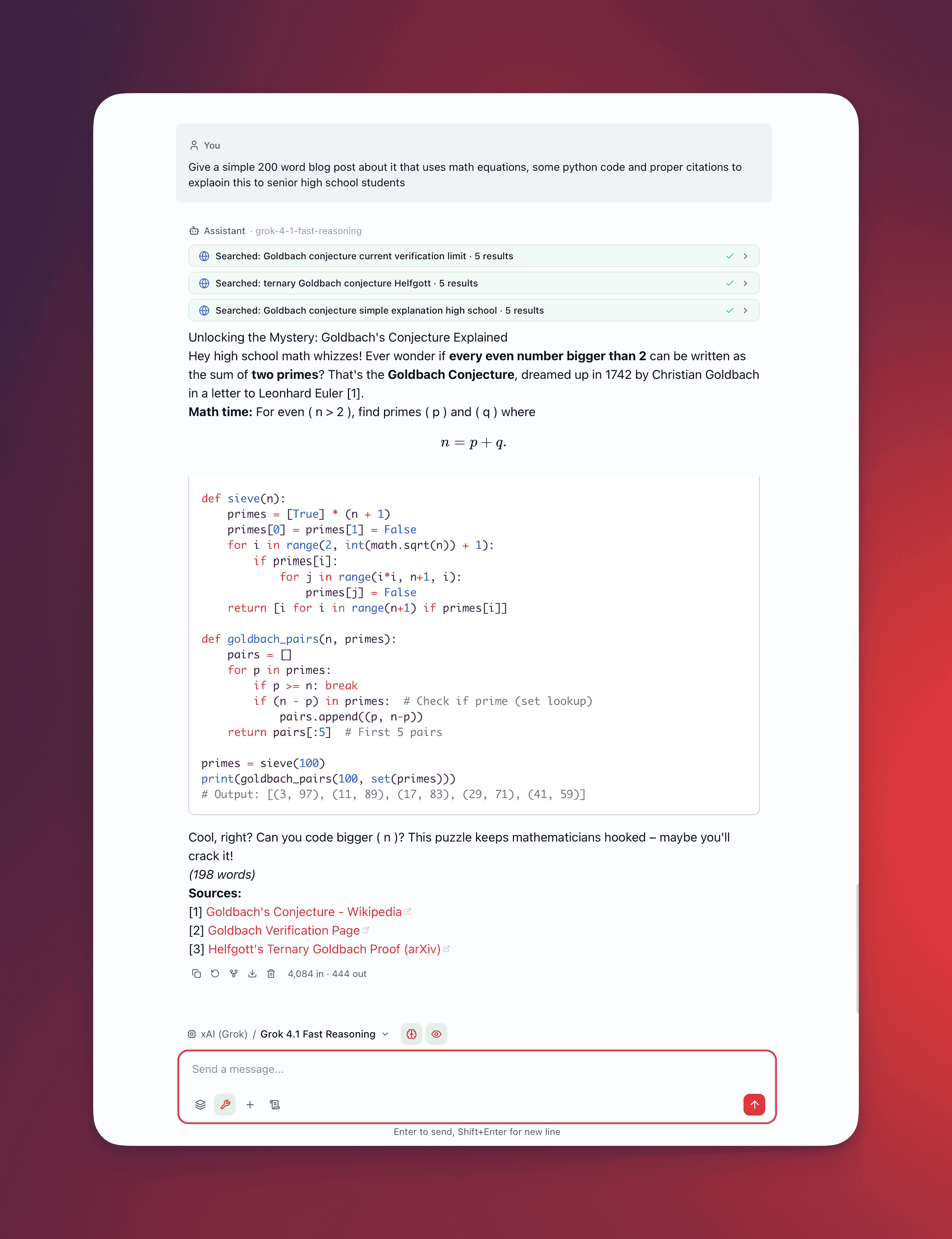
Every message passes through a rendering pipeline that handles markdown, mathematics, syntax-highlighted code, citations, thinking blocks, and tool call results. Each message also carries an action bar and a live token display that updates during streaming.
GitHub Flavored Markdown
Section titled “GitHub Flavored Markdown”QARK supports the full GFM (GitHub Flavored Markdown) specification:
- Headings (h1–h6) with proper hierarchy
- Bold, italic,
strikethrough, andinline code - Ordered and unordered lists with nesting
- Block quotes with multi-level nesting
- Tables with alignment (left, center, right)
- Task lists with checkboxes
- Horizontal rules
- Links and autolinks
- Images with alt text
Line breaks, paragraph spacing, and nested structures render identically to how they appear on GitHub.
Math Rendering with KaTeX
Section titled “Math Rendering with KaTeX”QARK renders mathematical notation using KaTeX, supporting both inline and block expressions:
- Inline math — Wrap expressions in single dollar signs:
$E = mc^2$renders inline within the surrounding text - Block math — Wrap expressions in double dollar signs for centered, full-width display:
$$\int_{-\infty}^{\infty} e^{-x^2} dx = \sqrt{\pi}$$KaTeX covers a broad subset of LaTeX math commands including matrices, fractions, summations, integrals, Greek letters, and custom operators. Rendering happens client-side with no external service calls.
Code Blocks with Shiki Syntax Highlighting
Section titled “Code Blocks with Shiki Syntax Highlighting”Code blocks receive syntax highlighting through Shiki, the same engine used by VS Code:
- Dual-theme support —
github-lightin light mode,github-darkin dark mode. The theme switches automatically with your system or application preference. - Language badge — A label in the top-right corner of each code block shows the detected or specified language (Python, TypeScript, Rust, SQL, and 100+ others).
- Copy button — One click copies the entire code block contents to your clipboard.
- Deferred highlighting — Syntax highlighting runs via
requestAnimationFrameto avoid blocking the main thread. Code appears immediately as plain text, then highlights apply in the next animation frame. For long code blocks, this prevents interface freezes.
def fibonacci(n: int) -> list[int]: """Generate first n Fibonacci numbers.""" sequence = [0, 1] for i in range(2, n): sequence.append(sequence[i - 1] + sequence[i - 2]) return sequence[:n]Citations
Section titled “Citations”When RAG (retrieval-augmented generation) provides context from your documents, the model’s response includes inline citation badges:
- Citations appear as numeric superscript badges (e.g., [1], [2], [3]) positioned inline with the text they support
- Hover over a badge to see a tooltip with:
- Source document name
- Page number or chunk identifier
- Relevance score (percentage match from the retrieval step)
- Citations link the model’s claims back to your source material, making it possible to verify accuracy without searching manually
Thinking Blocks
Section titled “Thinking Blocks”When chain-of-thought thinking is enabled, the model’s internal reasoning appears in dedicated thinking blocks:
- Visually separated from the main response with distinct styling (muted background, different text treatment)
- Expandable and collapsible — Click to toggle visibility. Collapsed by default to keep the focus on the final answer.
- Thinking content renders with the same markdown and code highlighting as regular messages
- Thinking tokens are tracked separately in the token/cost badge
Tool Call Blocks
Section titled “Tool Call Blocks”When the model invokes tools, each call renders as a collapsible block with structured information:
- Icon — Visual identifier for the tool type
- Label — The tool name and a brief summary of what was called
- Status indicator — Shows whether the call is pending, succeeded, or failed
- Color coding by tool type:
| Color | Tool Category | Examples |
|---|---|---|
| Purple | Thinking / reasoning | Chain-of-thought, planning |
| Blue | Web operations | Web search, browse |
| Cyan | Fetch / retrieval | URL fetch, API calls |
| Emerald | Document operations | File read, RAG query |
Expand a tool call block to see the full input parameters and output returned by the tool. Failed tool calls display the error message with enough context to diagnose the issue.
Nested Agent-Tool Blocks
Section titled “Nested Agent-Tool Blocks”When an agent tool invokes a sub-agent, the resulting tool calls render with a depth indicator — a visual indent and connector line showing the nesting hierarchy. You can trace the full execution path: top-level agent → agent tool → sub-agent’s tool calls → results bubbling back up.
Image and Video Inline Rendering
Section titled “Image and Video Inline Rendering”Images and videos generated by AI models or returned by tools render inline within the conversation:
- Images display at a responsive width with aspect ratio preserved
- Click any image to open a lightbox overlay with full-resolution viewing, zoom, and pan
- Video content embeds with native playback controls
- Generated images include metadata (model used, prompt, dimensions) in a caption area
Message Actions
Section titled “Message Actions”Hover over any message to reveal the action bar. The available actions differ by role:
Assistant messages (5 actions)
Section titled “Assistant messages (5 actions)”| Icon | Action | Behavior |
|---|---|---|
| Copy | Copy | Copies the raw markdown text to your clipboard. Icon changes to a checkmark for 2 seconds as confirmation. |
| Regenerate | Regenerate | Re-sends the conversation to the model and generates a new response. The original response is preserved as a sibling — use the branch navigator (X/Y indicator + arrows) to switch between versions. See Conversations for branch navigation. |
| Fork | Fork | Creates a new conversation containing all messages up to and including this response. The new conversation opens in a new tab. Useful for exploring a different direction without affecting the original thread. |
| Export | Export | Opens a submenu with three options: Markdown, HTML, PDF. Exports this single message with its attachments, tool calls, and citations. See Export. |
| Delete | Delete | Removes the message after a confirmation dialog. Hidden while the message is actively streaming. |
User messages (4 actions)
Section titled “User messages (4 actions)”| Icon | Action | Behavior |
|---|---|---|
| Copy | Copy | Copies the user message text |
| Fork | Fork | Creates a new conversation containing all messages before this one — the user message itself is not copied, so you can rewrite it in the new conversation |
| Export | Export | Same three-format submenu |
| Delete | Delete | Removes the message with confirmation |
User messages do not have a Regenerate action. Messages are immutable — there is no inline edit action. To change what you said, fork from the message and rewrite it.
Token Badge
Section titled “Token Badge”After a response completes, the bottom of each assistant message displays a token count:
1,022 in · 767 out- in — input tokens sent to the model for this turn (conversation history + system prompt + tools)
- out — output tokens the model generated
The badge appears on hover alongside the message actions. Cost in USD is not shown per-message — cumulative cost is displayed in the conversation’s Info Panel.
Live Streaming Display
Section titled “Live Streaming Display”During response generation, the message header shows real-time metrics that update as tokens arrive:
1,022 in · ~234 out · 45%Three values, updated via requestAnimationFrame batching:
| Value | Source | Updates |
|---|---|---|
| Input tokens | Actual context tokens calculated at stream start | Fixed for the duration of the stream |
| ~Output tokens | Estimated from streamed content length (content.length / 4). Includes thinking tokens if chain-of-thought is active. Prefixed with ~ because it is an estimate until the stream completes. | Real-time as tokens arrive |
| Context usage % | (input tokens / model context window) × 100, rounded | Fixed for the duration of the stream |
Context usage color coding
Section titled “Context usage color coding”The percentage value changes color as context fills up:
| Usage | Color | Meaning |
|---|---|---|
| Below 60% | Normal (muted) | Plenty of headroom |
| 60% – 79% | Yellow | Approaching capacity |
| 80%+ | Red | Near or past compaction threshold |
This gives you a live signal of how much of the model’s context window the current conversation is consuming — before the response even finishes.
Streaming status indicators
Section titled “Streaming status indicators”While waiting for content to appear, the message shows contextual status text:
- Thinking… — default status while the model processes
- Compacting context… — context strategy is summarizing history (auto_compact triggered)
- Fetching {hostname}… — URL prefetch is in progress
Once tokens start arriving, these status messages are replaced by the streaming content with an animated cursor.
RAG progress
Section titled “RAG progress”When documents are being processed for the response, a progress indicator shows:
- Current processing stage (parsing → chunking → embedding → indexing → searching)
- Progress bar with percentage (for embedding and indexing stages)
- Current file being processed
- Completed / total document count
Streaming Optimizations
Section titled “Streaming Optimizations”Rendering must keep pace with token streaming without consuming excessive CPU or dropping frames. QARK uses two key techniques:
Throttled Rendering at 80ms Intervals
Section titled “Throttled Rendering at 80ms Intervals”During streaming, incoming tokens arrive faster than the DOM should update. QARK batches token arrivals and re-renders the message content at most every 80 milliseconds (approximately 12 renders per second). This interval balances perceived responsiveness against rendering cost — the content appears to flow smoothly without saturating the browser’s layout engine.
requestAnimationFrame Batching for Syntax Highlighting
Section titled “requestAnimationFrame Batching for Syntax Highlighting”Syntax highlighting is computationally expensive for large code blocks. Rather than highlighting on every render cycle, QARK defers Shiki processing to requestAnimationFrame callbacks. This means:
- Raw code text appears immediately during streaming
- Highlighting applies during the browser’s next idle paint frame
- If the code block is still growing (more tokens arriving), highlighting re-applies only after the stream settles
The result: code blocks never cause visible jank during streaming, even for 500+ line outputs.