
Command Palette
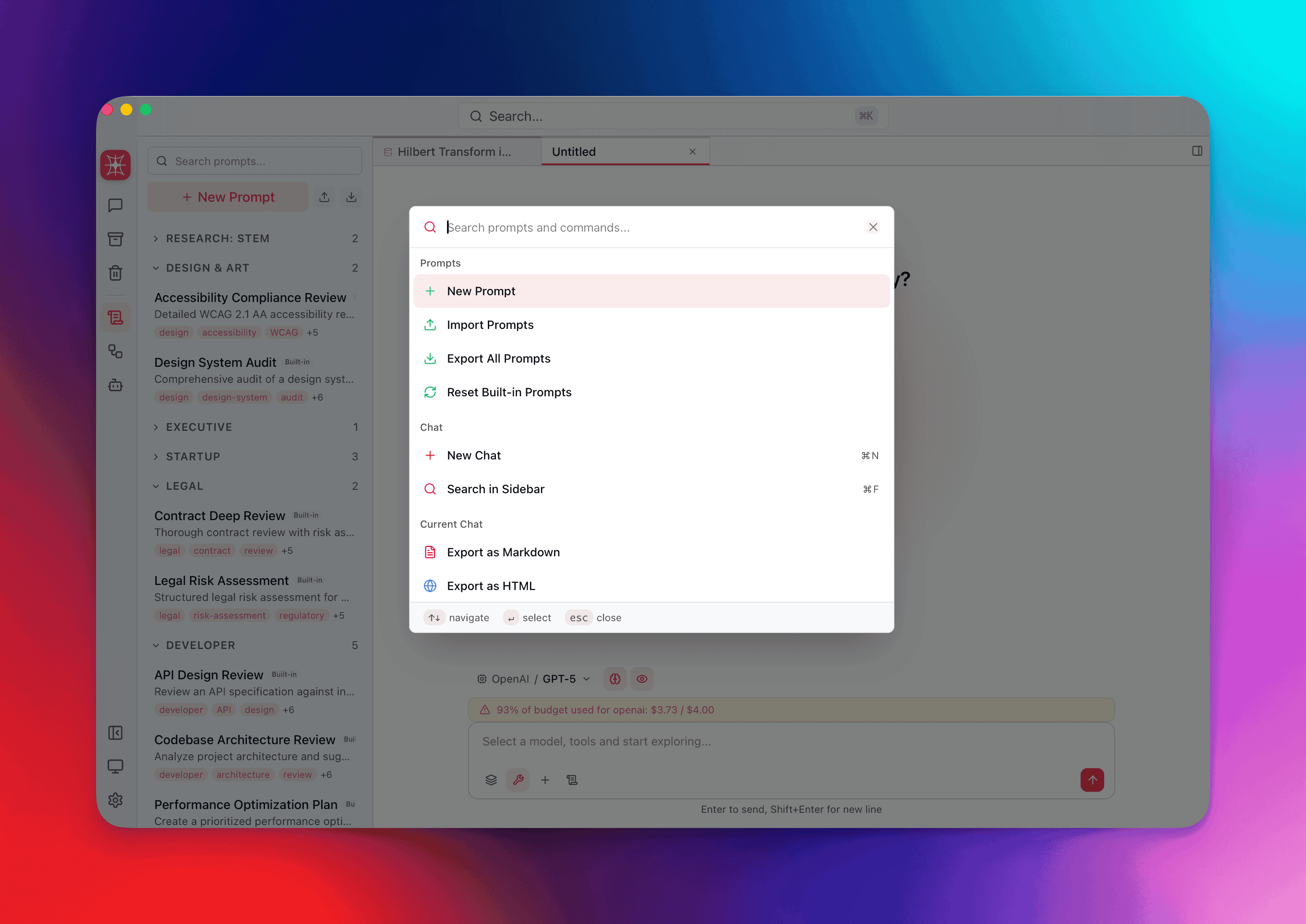
Press Cmd+K (macOS) or Ctrl+K (Windows/Linux) to open the command palette — a single interface for every action in QARK, context-aware based on your current state. Type what you want, arrow to it, press Enter.
Hierarchical Command System
Section titled “Hierarchical Command System”The command palette organizes actions into context-aware groups. When you open it, you see the root groups relevant to your current state. Selecting certain commands opens a sub-page within the palette itself — configuration stays inline, no separate dialogs.
Root Groups
Section titled “Root Groups”Search Results — Global full-text search across your entire conversation history. Triggers after 2 characters, debounced at 200ms. Returns the top 10 deduplicated results with message snippets so you can identify the right conversation before opening it.
Chat — Start a new conversation or search the sidebar.
Current Chat — Actions scoped to the conversation you’re viewing:
- Export as Markdown, HTML, or PDF
- Copy entire conversation to clipboard
- Pin conversation to the top of the sidebar
- Fork conversation (branch from any point)
- Delete conversation
- Manage attachments (images, documents, folders)
Current Chat Config — Adjust the active conversation’s model and parameters:
- Change model
- Toggle individual tools on or off
Selection — Appears when you have 2 or more conversations selected in the sidebar:
- Group selected conversations
- Ungroup conversations
- Move to a different group
- Archive selected
- Trash selected
Chat Groups — Organize your sidebar:
- Create a new group
- Cleanup empty groups
- Merge groups together
Prompts/Flows — Manage your reusable prompts and automation flows:
- Create a new prompt or flow
- Import from file
- Export to file
- Browse the prompt library
Navigation — Control the interface layout:
- Switch sidebar views
- Toggle the info panel
- Toggle split view
Manage — Housekeeping:
- Open archive
- Open trash
- Empty trash permanently
Settings — App-wide configuration:
- Open settings
- Cycle theme (light → dark → system)
- Manage models
- Budget controls
- MCP servers
- Tool management
Sub-Pages: Nested Configuration
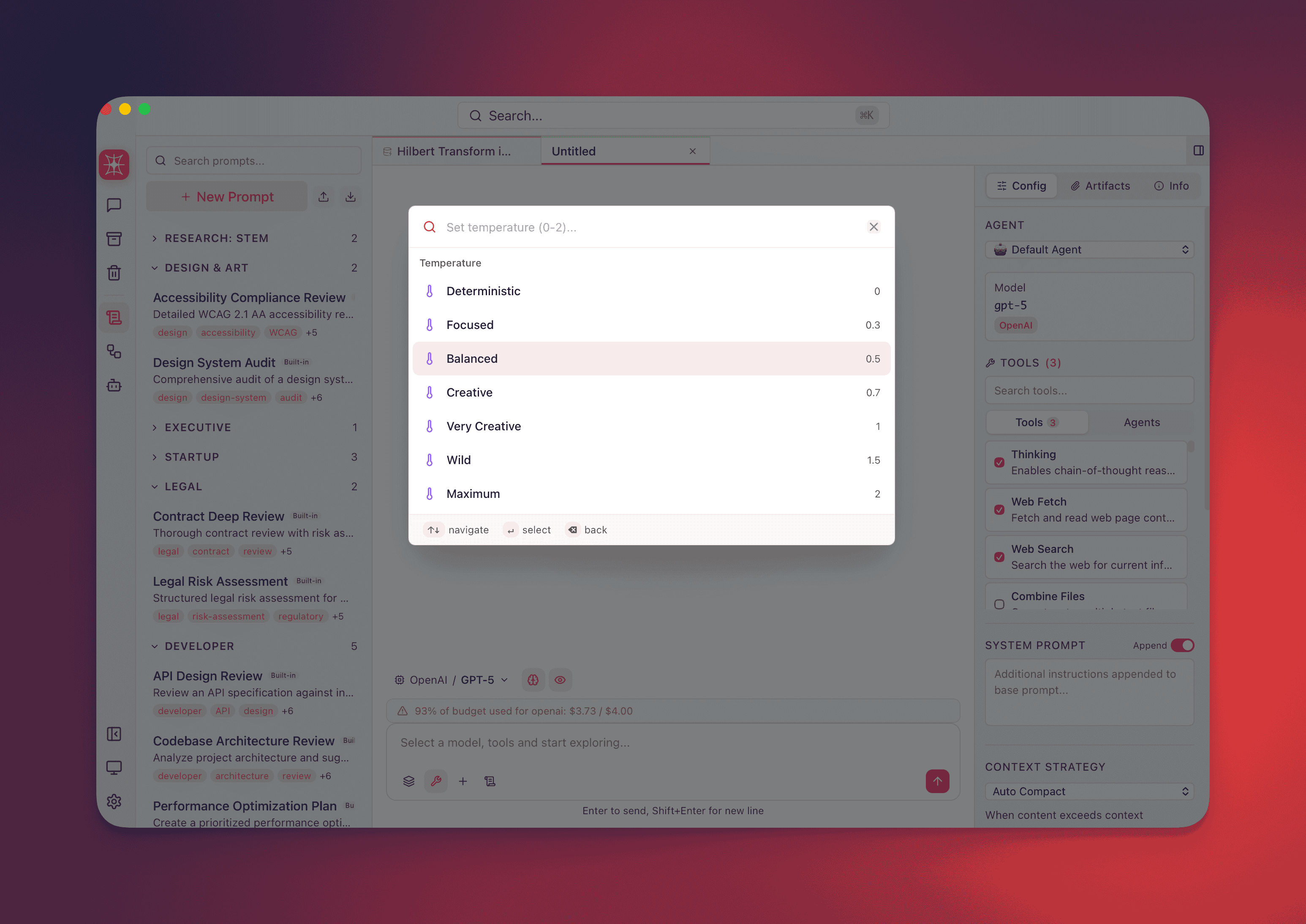
Section titled “Sub-Pages: Nested Configuration”Selecting certain commands doesn’t close the palette — it opens a sub-page with focused options. This keeps configuration fast and discoverable without scattering controls across separate panels.
Temperature
Section titled “Temperature”7 presets ranging from deterministic to maximum creativity:
| Preset | Value | Use Case |
|---|---|---|
| Deterministic | 0 | Code generation, structured output |
| Very Low | 0.3 | Factual responses, summarization |
| Low | 0.5 | Balanced analytical tasks |
| Medium | 0.7 | General conversation |
| High | 1.0 | Creative writing, brainstorming |
| Very High | 1.5 | Experimental, divergent ideas |
| Maximum | 2.0 | Maximum creativity and randomness |
Max Tokens
Section titled “Max Tokens”8 presets controlling response length:
- 256 tokens — Short answers, labels, classifications
- 512 tokens — Brief paragraphs
- 1024 tokens — Standard responses
- 2048 tokens — Detailed explanations
- 4096 tokens — Long-form content
- 8192 tokens — Extended documents
- 16384 tokens — Comprehensive analysis
- 32768 tokens — Maximum output length
Additional Parameter Sub-Pages
Section titled “Additional Parameter Sub-Pages”- Top P — Nucleus sampling threshold
- Frequency Penalty — Reduce repetition of token sequences
- Presence Penalty — Encourage topic diversity
- Reasoning Effort — Available for Anthropic models; controls depth of chain-of-thought reasoning
- Context Strategy Picker — Choose how conversation history is managed
- Last N Value — Number of recent messages included in context
- Token Budget Value — Maximum tokens allocated for context
- Agent Selector — Switch the active agent configuration
Search Within the Palette
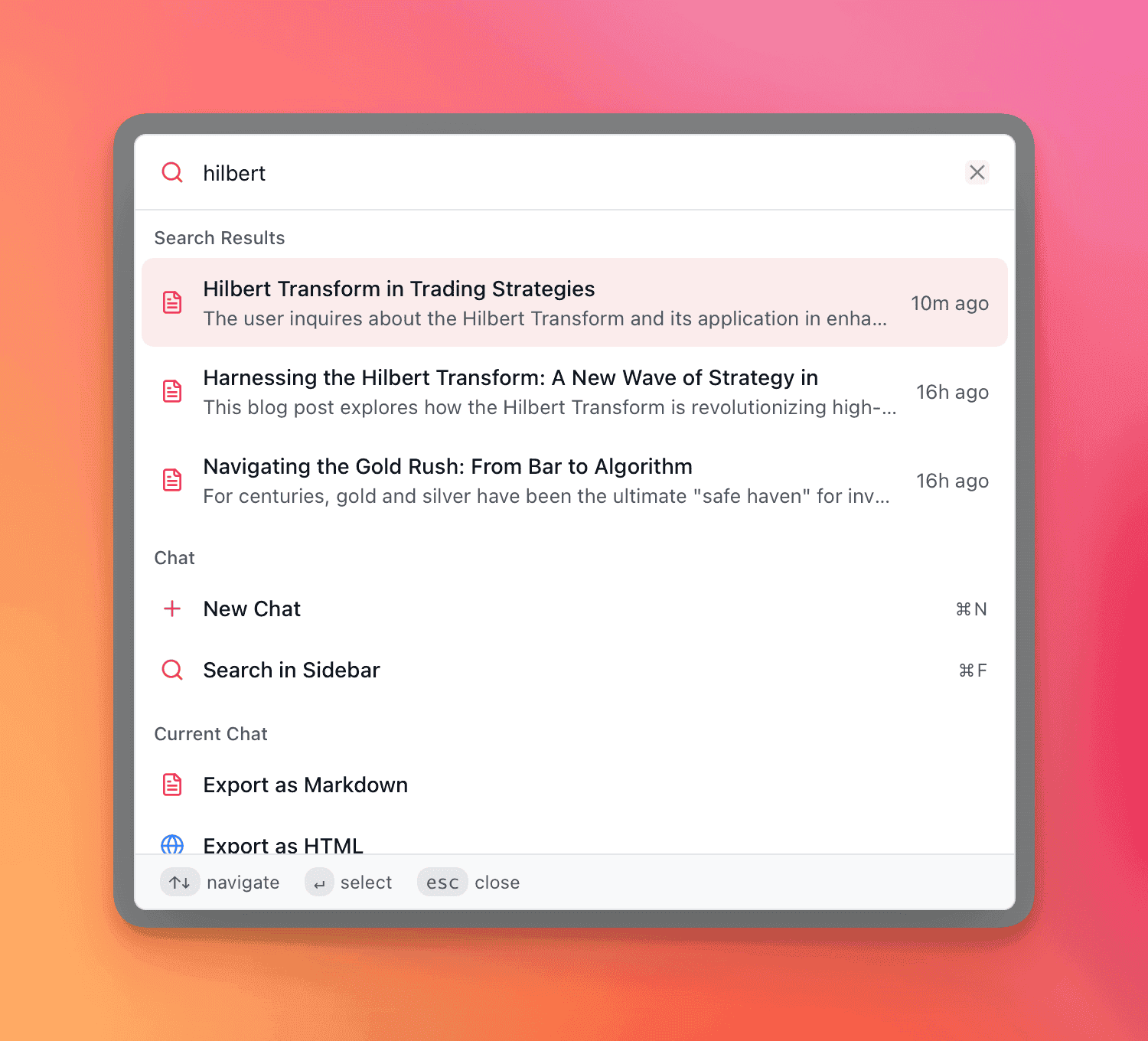
Section titled “Search Within the Palette”When your query reaches 2 or more characters, the palette triggers a server-side global search. Results return as conversation matches with message snippets, so you can scan context without opening each conversation individually.
- Debounced at 200ms to avoid unnecessary queries while typing
- Returns up to 10 results, deduplicated (multiple matches within the same conversation collapse into a single entry)
- Each result displays the conversation title and a snippet from the matching message
Navigate the Palette
Section titled “Navigate the Palette”| Key | Action |
|---|---|
| ↑ ↓ | Move between items |
| Enter | Select the highlighted item |
| Backspace | Go back from a sub-page to the parent group |
| Escape | Close the palette entirely |
Keyboard shortcuts are displayed inline next to each command, so the palette doubles as a shortcut reference. Use it to discover bindings you haven’t memorized yet.
Context-Aware Commands
Section titled “Context-Aware Commands”The palette doesn’t show every command at all times. Available actions change based on 3 factors:
- Active conversation — Current Chat and Current Chat Config groups appear only when a conversation is open.
- Selection count — The Selection group appears only when 2 or more conversations are selected in the sidebar.
- Current sidebar view — Navigation commands adapt to the active view state.
This keeps the palette focused. You see only the commands that apply right now.
Events Dispatched
Section titled “Events Dispatched”Certain palette commands dispatch application events that trigger specialized interfaces:
attach-image— Opens the image attachment pickerattach-document— Opens the document attachment pickerattach-folder— Opens the folder attachment pickerclipboard-history— Opens clipboard history for pasting previous itemsnew-prompt— Opens the prompt editornew-flow— Opens the flow buildercreate-agent— Opens the agent creation interfaceopen-model-selector— Opens the model selection panel
These events decouple the palette from specific UI components, allowing each feature to handle its own presentation while the palette remains a unified entry point.