
MCP Integration
The Model Context Protocol (MCP) is an open standard for connecting external tool servers to AI applications. QARK acts as an MCP client — it spawns or connects to servers, discovers their tools at runtime, and makes those tools available to your agents through the same @mention system used by built-in tools.
Transport Types
Section titled “Transport Types”stdio (Local Subprocess)
Section titled “stdio (Local Subprocess)”QARK spawns the MCP server as a child process and communicates over stdin/stdout. You provide a command, optional arguments, and optional environment variables.
| Field | Description |
|---|---|
| Command | Executable name or path — npx, python, uvx, node, or a compiled binary |
| Args | Command-line arguments passed to the executable (JSON array) |
| Environment variables | Key-value pairs injected into the subprocess environment |
On Unix systems, the process is spawned through your login shell ($SHELL -l -c "command args") so that version managers like nvm, pyenv, and uv resolve correctly. On Windows, it runs via cmd /C which inherits the system PATH.
Use stdio for tools that access local resources — filesystems, databases, running processes — or when you want zero network exposure.
HTTP (Remote Server)
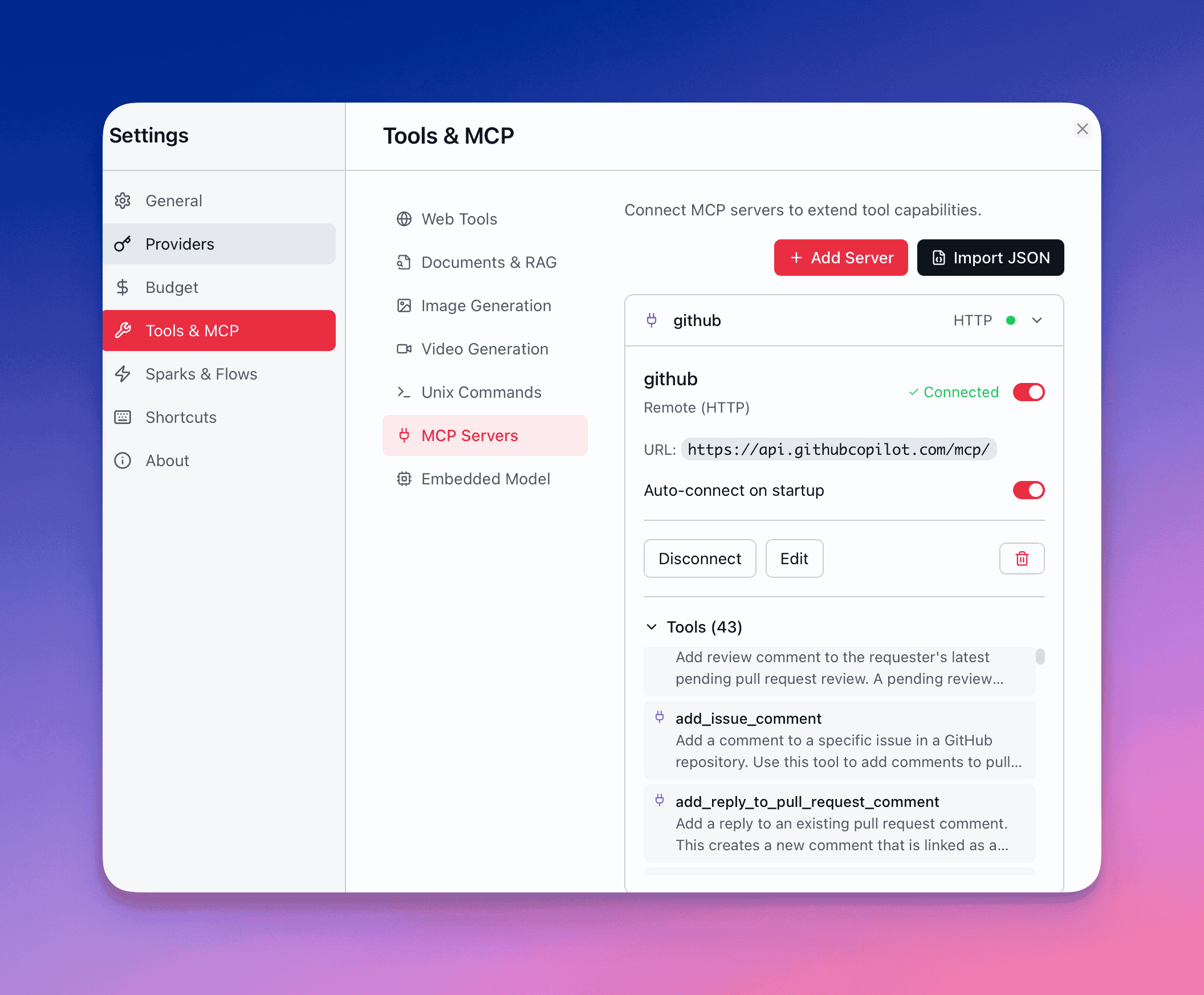
Section titled “HTTP (Remote Server)”QARK connects to an MCP server over the network via HTTP with Server-Sent Events (SSE) for streaming.
| Field | Description |
|---|---|
| URL | The server’s HTTP endpoint |
| Headers | Authentication headers and custom metadata — stored with AES-256 encryption on disk |
For authentication, pass a Bearer token or API key in headers. QARK encrypts all header values before writing them to the database, using the same keychain-backed encryption as provider API keys.
Use HTTP for shared team servers, cloud-hosted tools, or third-party MCP services.
Adding Servers
Section titled “Adding Servers”Method 1: Settings UI
Section titled “Method 1: Settings UI”Open Settings → MCP Servers and click Add Server.
- Choose a transport type (stdio or HTTP)
- For stdio: enter the command, arguments, and any environment variables the server needs
- For HTTP: enter the endpoint URL and authentication headers
- Give the server a name
- Save — QARK connects immediately and discovers available tools
Method 2: Import from JSON
Section titled “Method 2: Import from JSON”Click Import from JSON in the MCP settings panel and paste a JSON configuration. QARK accepts two formats:
Claude Desktop / Cursor format (with mcpServers wrapper):
{ "mcpServers": { "github": { "command": "npx", "args": ["-y", "@modelcontextprotocol/server-github"], "env": { "GITHUB_PERSONAL_ACCESS_TOKEN": "ghp_xxxxxxxxxxxx" } }, "slack": { "command": "npx", "args": ["-y", "@anthropic/mcp-server-slack"], "env": { "SLACK_BOT_TOKEN": "xoxb-xxxxxxxxxxxx" } } }}Flat format (servers at root level):
{ "filesystem": { "command": "npx", "args": ["-y", "@modelcontextprotocol/server-filesystem", "/Users/me/projects"] }}QARK detects the format automatically. Each entry with a command field becomes a stdio server; entries with a url field become HTTP servers. All imported servers are enabled and auto-connected immediately.
This means you can copy MCP configurations directly from Claude Desktop, Cursor, or any tool that uses the same JSON format — paste it into QARK and your servers are ready.
Server Lifecycle
Section titled “Server Lifecycle”Startup
Section titled “Startup”When QARK launches, it queries all servers where both is_enabled and auto_connect are true, then connects to each one in a background task. This runs asynchronously — the app is usable immediately while servers spin up in the background.
For stdio servers, QARK spawns the subprocess, initializes the MCP client, and calls list_tools to discover available tools. For HTTP servers, it establishes the connection and performs the same discovery. Each server emits a status event as it transitions through states.
Connection States
Section titled “Connection States”Every server has one of four states:
| State | Meaning |
|---|---|
| Disconnected | Configured but not running |
| Connecting | Subprocess spawning or HTTP handshake in progress |
| Connected | Tools discovered and available to agents |
| Error | Connection failed — error message available for diagnosis |
State changes emit mcp:status_changed events that update the UI in real time. You can see the current state of every server in Settings → MCP Servers.
Shutdown
Section titled “Shutdown”On app exit, QARK performs graceful shutdown for all active servers:
- Iterates through all active connections
- Cancels each server’s running service token
- Sets status to Disconnected
- Drops the service handle, which closes stdio pipes or HTTP connections
Stdio subprocesses receive a termination signal and are cleaned up. No orphaned processes are left behind.
Manual Control
Section titled “Manual Control”You can connect or disconnect any server at any time from the settings panel. Disabling a server disconnects it immediately without deleting its configuration — re-enable and it reconnects with the same settings.
Tool Discovery
Section titled “Tool Discovery”When a server reaches the Connected state, QARK calls list_tools on the MCP protocol and receives the full manifest of available tools. Each tool includes:
| Property | Description |
|---|---|
| Name | Unique identifier within the server |
| Description | What the tool does — visible to both you and the model |
| Input schema | Typed parameters with names, types, descriptions, and required/optional markers (JSON Schema) |
Discovered tool names are cached in the database so the settings UI can display them even when a server is disconnected.
Tools appear in the @mention popover using a namespaced format:
mcp:<server_id>:<tool_name>Type @ followed by the server name or tool name to filter results.
Per-Server Tool Control
Section titled “Per-Server Tool Control”Not every tool from every server needs to be active. In Settings → MCP Servers → [Server] → Tools, you can:
- Toggle individual tools on or off — disabled tools are hidden from the model and the @mention popover
- Bulk toggle all tools for a server with a single action
Disabling unused tools reduces token overhead in the model’s tool list and keeps the agent focused on what matters for the current task.
Per-Conversation Tool Selection
Section titled “Per-Conversation Tool Selection”Beyond the global server-level toggles, each conversation’s Config panel lets you choose exactly which MCP tools are available for that conversation. Open the Info Panel → Config tab → Enabled Tools to add or remove specific mcp:server:tool entries.
Environment Variables and Secrets
Section titled “Environment Variables and Secrets”Stdio servers often need API keys or tokens passed as environment variables. Enter these as key-value pairs in the server configuration. They are injected into the subprocess environment at spawn time.
HTTP server headers (which typically carry authentication tokens) receive AES-256 encryption before storage — the same encryption used for provider API keys.
Example Configurations
Section titled “Example Configurations”GitHub
Section titled “GitHub”Access repositories, issues, pull requests, and more through the official GitHub MCP server.
{ "mcpServers": { "github": { "command": "npx", "args": ["-y", "@modelcontextprotocol/server-github"], "env": { "GITHUB_PERSONAL_ACCESS_TOKEN": "ghp_xxxxxxxxxxxx" } } }}Exposes tools like create_issue, search_repositories, get_file_contents, create_pull_request, and more. Generate a personal access token at GitHub → Settings → Developer settings → Personal access tokens with the scopes your workflows need.
Send messages, read channels, and search workspace history.
{ "mcpServers": { "slack": { "command": "npx", "args": ["-y", "@anthropic/mcp-server-slack"], "env": { "SLACK_BOT_TOKEN": "xoxb-xxxxxxxxxxxx", "SLACK_TEAM_ID": "T00000000" } } }}Create a Slack app at api.slack.com/apps, install it to your workspace, and use the Bot User OAuth Token. Add channel scopes like channels:read, chat:write, and search:read depending on which tools you need.
Spotify
Section titled “Spotify”Browse music, control playback, and manage playlists through the community Spotify MCP server.
{ "mcpServers": { "spotify": { "command": "npx", "args": ["-y", "spotify-mcp"], "env": { "SPOTIFY_CLIENT_ID": "xxxxxxxxxxxx", "SPOTIFY_CLIENT_SECRET": "xxxxxxxxxxxx", "SPOTIFY_REDIRECT_URI": "http://localhost:8888/callback" } } }}Register an app at developer.spotify.com/dashboard to get client credentials. See spotify-mcp on GitHub for setup details and available tools.
Filesystem
Section titled “Filesystem”Read, search, and browse files on your local machine.
{ "mcpServers": { "filesystem": { "command": "npx", "args": [ "-y", "@modelcontextprotocol/server-filesystem", "/Users/me/projects", "/Users/me/documents" ] } }}Pass directory paths as arguments to define which directories the server can access. The agent can then read files, list directories, and search file contents within those boundaries.
PostgreSQL
Section titled “PostgreSQL”Query and inspect PostgreSQL databases.
{ "mcpServers": { "postgres": { "command": "npx", "args": ["-y", "@modelcontextprotocol/server-postgres"], "env": { "POSTGRES_CONNECTION_STRING": "postgresql://user:password@localhost:5432/mydb" } } }}Exposes tools for running read-only SQL queries, listing tables, and inspecting schemas. Useful for data exploration and analysis workflows where the agent needs to query live data.
Brave Search (HTTP)
Section titled “Brave Search (HTTP)”An example of an HTTP transport server — connect to a remote MCP endpoint with authentication headers.
{ "mcpServers": { "brave-search": { "url": "https://mcp.bravesearch.com/sse", "headers": { "Authorization": "Bearer your-brave-api-key" } } }}HTTP servers don’t spawn a local process — QARK connects to the remote endpoint directly. Authentication headers are encrypted before storage.
Tool Turns
Section titled “Tool Turns”When MCP tools are active in a conversation, QARK elevates the tool turn limit to 50 per response (compared to 10 for built-in tools and 20 with unix commands). This gives agents room to orchestrate multi-step workflows across multiple MCP servers without hitting the turn cap.
Building Your Own MCP Server
Section titled “Building Your Own MCP Server”MCP is an open protocol. Any process that speaks the MCP protocol over stdio or HTTP can serve as a tool provider. Define your tool schemas (name, description, JSON Schema input), implement the tool handlers, and QARK handles discovery and invocation automatically.
The Model Context Protocol specification documents the protocol, and SDKs are available for TypeScript, Python, Rust, and other languages.