
Tabs & Split View
Conversations open as tabs. Pin critical threads, split the workspace into two panes, compare outputs side by side, and switch between conversations with a searchable tab switcher.
Open and close tabs
Section titled “Open and close tabs”Click any conversation in the sidebar to open it as a tab in the active pane. Closing a tab does not delete the conversation — it stays in the sidebar.
QARK stores the last 20 closed tabs. Press Cmd+Shift+T to reopen the most recently closed. Repeat to walk back through the history.
Pin tabs
Section titled “Pin tabs”Pinned tabs cannot be closed accidentally. They appear first in the tab bar, show a pin icon instead of a close button, and survive session restarts.
Pin from the tab context menu (right-click the tab header).
Reorder tabs
Section titled “Reorder tabs”Drag tabs left or right within their pane. Pinned tabs stay in the pinned zone; unpinned tabs stay in the unpinned zone.
Tab context menu
Section titled “Tab context menu”Right-click any tab:
| Action | Effect |
|---|---|
| Pin / Unpin | Toggle pinned status |
| Duplicate | Open a second tab for the same conversation |
| Split Right / Move to Right Pane | Move tab to the other pane (context-aware label) |
| Move to Left Pane | Move tab to left pane (when in right pane) |
| Close | Close this tab (disabled for pinned) |
| Close Others | Close all other tabs in this pane |
| Close Tabs to Right | Close all tabs to the right |
| Close All | Close every unpinned tab in this pane |
Tab overflow
Section titled “Tab overflow”Tabs have a minimum width of 100px. When they exceed the available space, hidden tabs move into a dropdown menu at the right edge of the tab bar showing a count. The active tab always remains visible.
Provider accent colors
Section titled “Provider accent colors”Each tab displays a colored top border indicating the conversation’s active provider:
| Provider | Color |
|---|---|
| Anthropic | Violet |
| OpenAI | Green |
| Gemini | Blue |
| Groq | Orange |
| Together | Cyan |
| xAI | Slate |
| OpenRouter | Pink |
| Perplexity | Teal |
| DeepSeek | Indigo |
| Ollama | Amber |
| LM Studio | Rose |
Useful in split view when comparing outputs from different providers — you can tell which model produced which output without reading the label.
Busy indicator
Section titled “Busy indicator”When a conversation is streaming, its tab shows a spinner replacing the close/pin icon. Visible even when the tab isn’t active, so you can monitor generation progress while working in another tab.
Split view
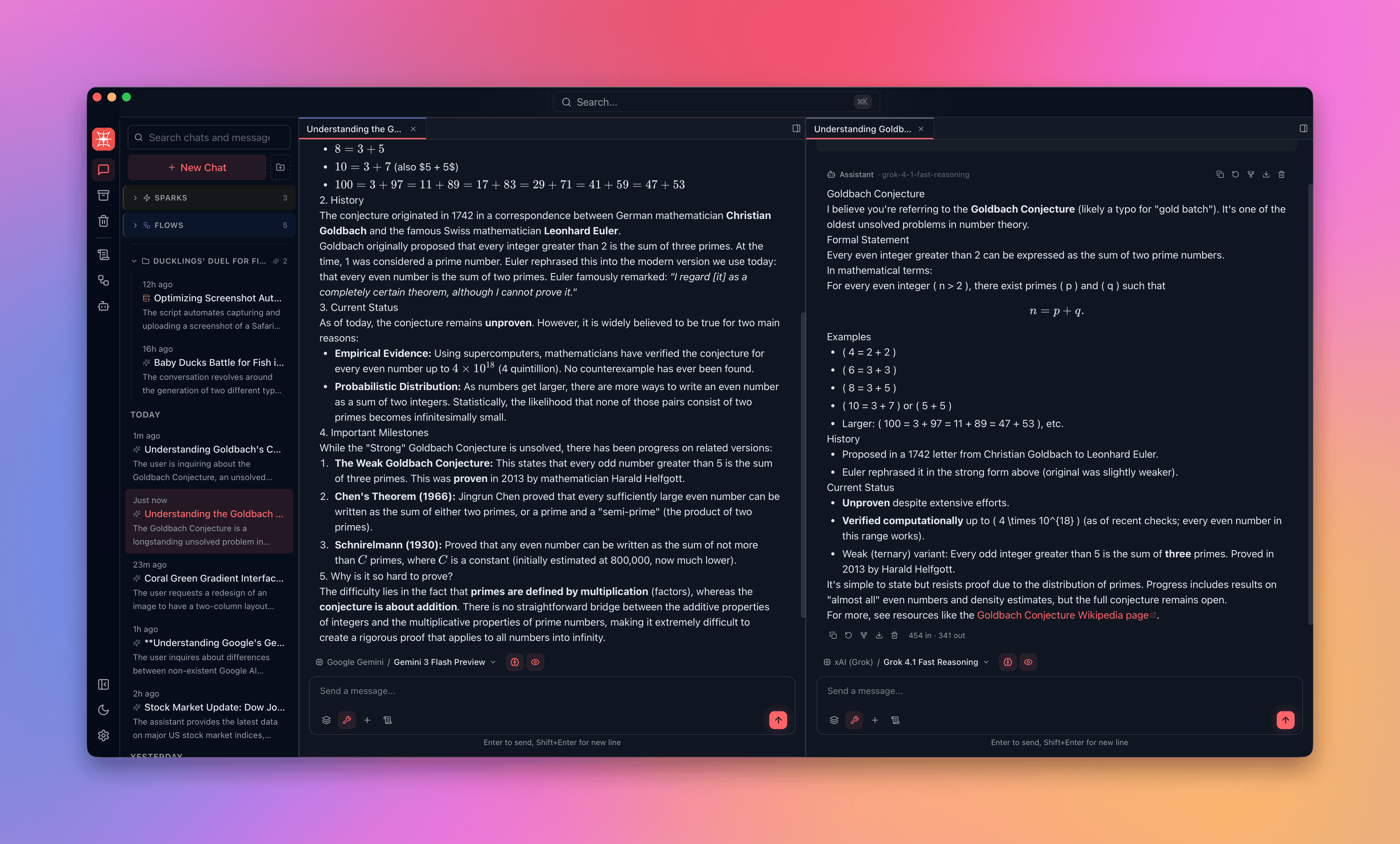
Section titled “Split view”Cmd+\ toggles split view, dividing the workspace into two independent panes.
Layout
Section titled “Layout”Horizontal 50/50 split by default. Each pane has its own tab bar, active tab, and scroll position. Drag the divider to resize — minimum 25% per pane. The right pane closes automatically when its last tab is removed.
Focus management
Section titled “Focus management”One pane is always active — shown by a subtle focus ring. All keyboard shortcuts and sidebar clicks target the active pane.
- Cmd+Alt+Left — focus left pane
- Cmd+Alt+Right — focus right pane
- Clicking inside a pane also sets it as active
Move tabs between panes
Section titled “Move tabs between panes”Use the tab context menu (Move to Other Pane) or drag a tab from one pane’s tab bar to the other. The tab keeps its conversation state, scroll position, and config.
Tab switcher
Section titled “Tab switcher”Cmd+E opens a modal listing all open tabs across both panes.
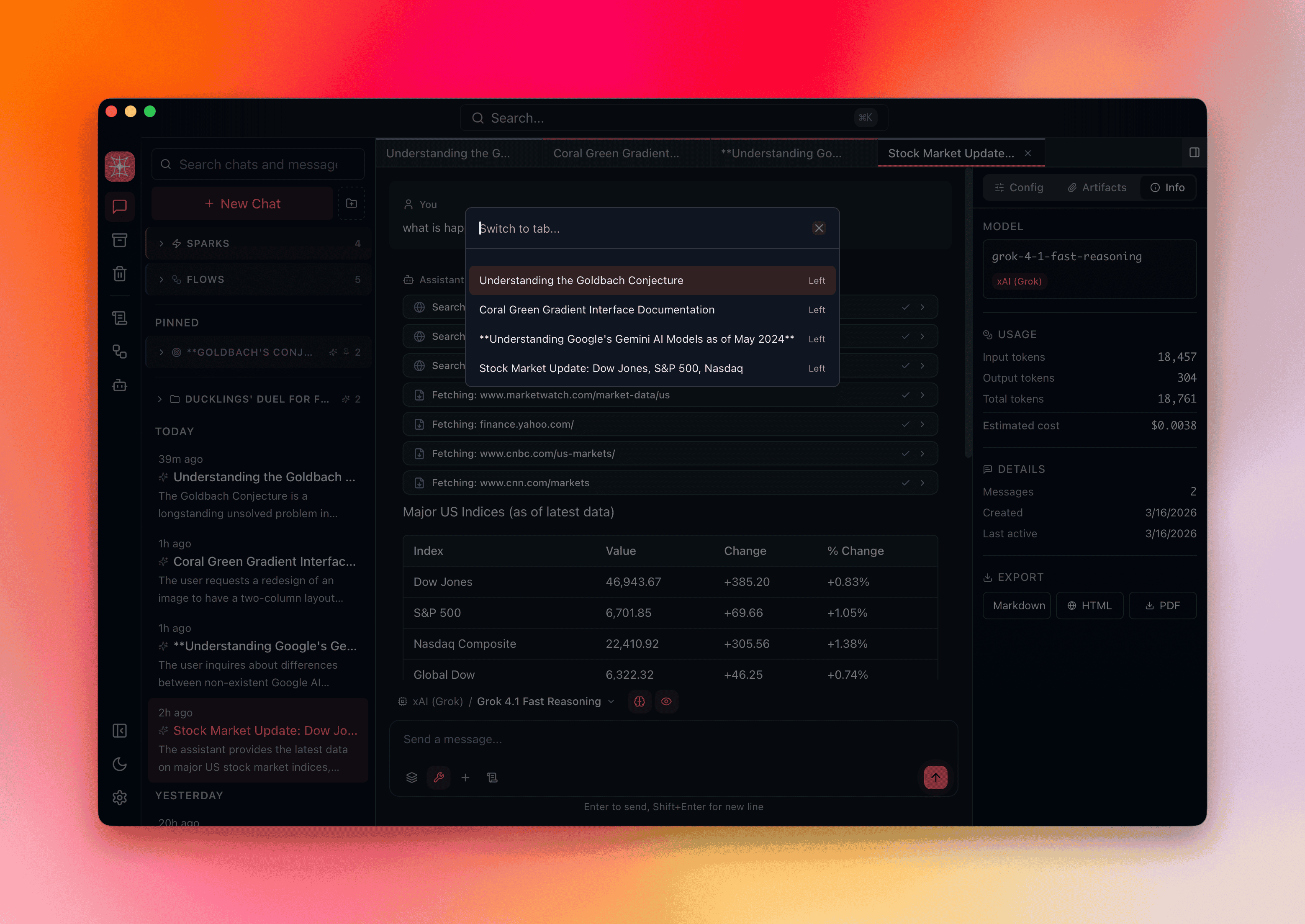
- Search — filter by conversation title
- Pane indicator — each entry shows Left or Right
- Arrow keys — navigate up/down, Enter to select, Escape to close
Info panel
Section titled “Info panel”Each conversation has an Info Panel that slides in from the right. Toggle with Cmd+I.
Three tabs:
| Tab | Content |
|---|---|
| Config | Model, provider, tools, context strategy, temperature, system prompt, and all per-conversation overrides |
| Attachments | Files, images, and documents attached to the conversation |
| Info | Metadata: creation date, message count, token usage, branch count |
The Info Panel is per-conversation — switching tabs within a pane updates it to reflect the active conversation. Open/closed state and active tab are persisted per conversation.
Keyboard shortcuts
Section titled “Keyboard shortcuts”| Shortcut | Action |
|---|---|
| Cmd+\ | Toggle split view |
| Cmd+E | Tab switcher |
| Cmd+W | Close active tab |
| Cmd+Shift+[ | Previous tab in pane |
| Cmd+Shift+] | Next tab in pane |
| Cmd+1–9 | Switch to tab by index |
| Cmd+Shift+T | Reopen last closed tab |
| Cmd+Alt+Left/Right | Switch pane focus |
| Cmd+I | Toggle info panel |