
Anatomy of a Flow
Every flow has two text fields, a model configuration, and an output pipeline. Understanding each part helps you build flows that produce consistent results.
Content Template
Section titled “Content Template”The content field is what gets sent to the model as the user message. It contains template variables that QARK substitutes at runtime:
| Variable | Substituted With |
|---|---|
| {{ input }} | Selected text from the source app, or clipboard contents if nothing is selected |
| {{ clipboard }} | Current clipboard contents |
| {{ user_prompt }} | Text typed in the overlay input field |
| {{ files }} | Comma-separated filenames of attached files |
Example content template for a grammar fix flow:
Fix all spelling, grammar, and punctuation errors in the following text.Do not change the meaning, tone, or style. Only output the corrected text.
{{ input }}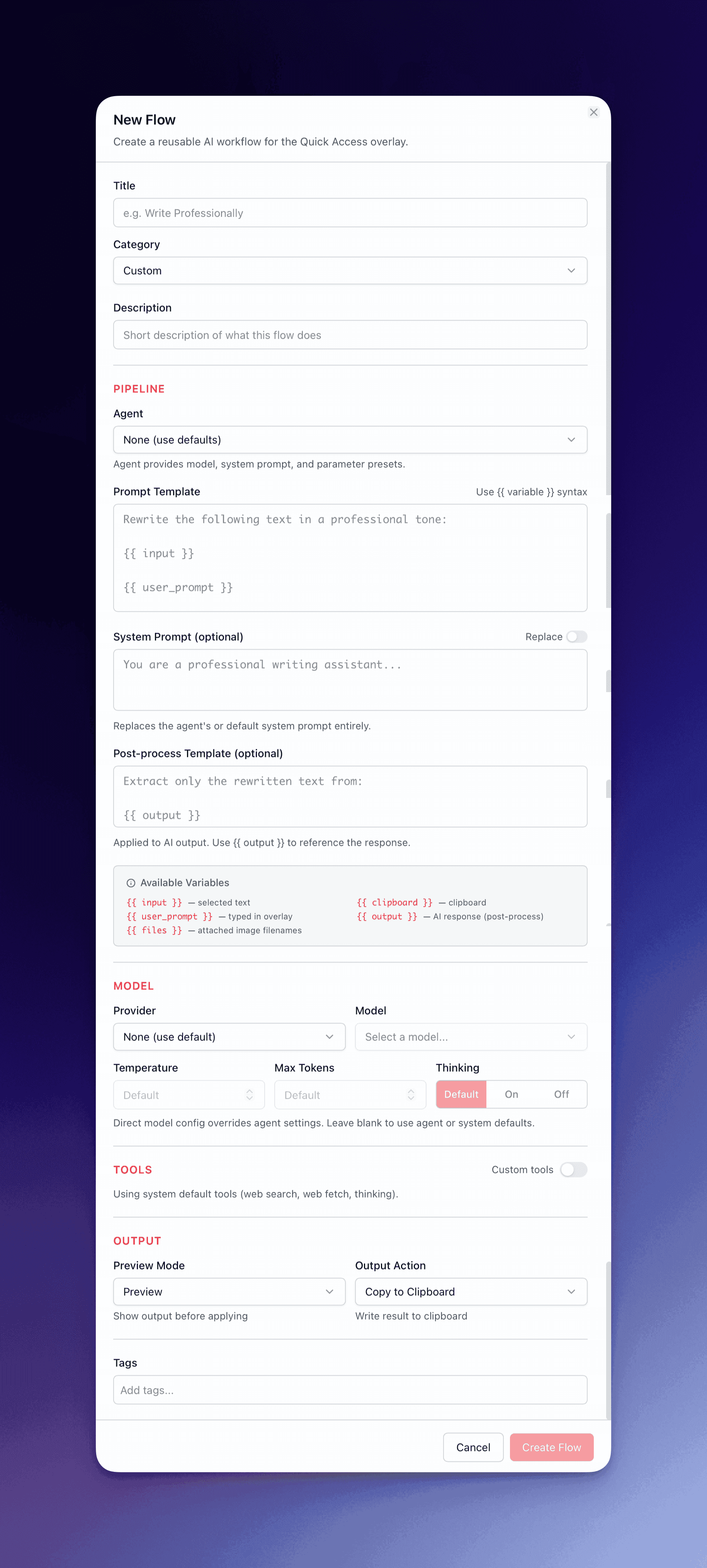
When the flow runs, {{ input }} is replaced with whatever text you selected before triggering the flow.
System Prompt
Section titled “System Prompt”The system prompt defines how the model behaves — its role, constraints, and output format. This is separate from the content template and controls the model’s approach to processing the input.
You are a meticulous proofreader. Fix only errors in spelling,grammar, and punctuation. Make no stylistic changes.Output only the corrected text.The system_prompt_mode setting controls how this prompt interacts with the agent’s base system prompt:
- replace (default) — The flow’s system prompt completely overrides the agent’s system prompt. Use this when you need total control over the model’s behavior.
- append — The flow’s system prompt is added after the agent’s existing system prompt. The agent retains its base personality and instructions. This is the default when an agent is assigned to the flow.
Some flows set system_prompt to null and rely entirely on an assigned agent’s system prompt — for example, the Research flows that use the Research Director agent.
Model Configuration
Section titled “Model Configuration”Each flow can specify its own model and execution parameters:
| Setting | Description |
|---|---|
| Agent | Assign a specific agent, or leave empty for the default. The agent provides a base system prompt and default tools. |
| Provider | Which AI provider handles the request |
| Model | The specific model within that provider |
| Temperature | Output randomness (0.0 deterministic → 2.0 creative). Most flows use 0.2–0.7. |
| Max tokens | Caps response length to prevent unexpectedly long outputs |
| Thinking | Enable extended reasoning for models that support it |
| Tools | Which tools the flow can invoke during execution (or inherit from the agent) |
If a flow does not specify a provider/model, it falls back to your default overlay provider/model from settings, then to your default chat provider/model.
Post-Processing Template
Section titled “Post-Processing Template”An optional template that transforms the model’s output before the output action fires. The post-processing template uses {{ output }} to reference the model’s response:
## Results
{{ output }}
---Generated by QARK Flow
Use this to strip formatting, wrap output in tags, add headers/footers, or extract specific sections from longer responses.
Output Actions
Section titled “Output Actions”The output action determines where the result goes after execution (and post-processing, if configured):
| Action | Behavior |
|---|---|
| copy | Places the result on your clipboard |
| paste | Inserts the result at the cursor position in the source application |
| insertBefore | Places the result immediately before the selected text |
| insertAfter | Places the result immediately after the selected text |
| openInChat | Opens the result as a full conversation in QARK for further iteration |
Each action suits different workflows:
- Writing transform flows (grammar fix, rewrite, simplify) → paste directly
- Analysis flows (explain, summarize, counter argument) → openInChat to iterate
- Vision and web extraction flows → copy for flexible use
The copy_output Flag
Section titled “The copy_output Flag”Independent of the primary output action, the copy_output flag auto-copies the result to your clipboard. Enable this when you want the output action to fire (e.g., open in chat) and keep a clipboard copy. Many built-in analysis and web flows enable this.
Preview Modes
Section titled “Preview Modes”Before the output action fires, a preview mode can intercept the result:
| Mode | Behavior |
|---|---|
| none | The output action executes immediately after generation completes. No confirmation step. Used by research flows that open directly in chat. |
| preview | Displays the result before acting. You review the output, then proceed with the configured action, switch to a different action, or discard. Used by most analysis and generation flows. |
| diff | Shows an inline diff comparing your original input against the flow’s output. Additions and removals are highlighted. Used by writing transform flows where you need to see exactly what changed. |