
Installation
System requirements
Section titled “System requirements”| Minimum | |
|---|---|
| OS | Windows 10+, macOS 13+, Linux (Ubuntu 22.04+, Fedora 38+, or equivalent) |
| RAM | 4 GB (8 GB recommended) |
| Disk | 250 MB |
| Display | 1280 × 720 |
| Network | Required for provider API calls. QARK itself runs offline. |
Download
Section titled “Download”Grab the installer for your platform from the QARK homepage.
Run the installer and follow the prompts. QARK installs into your platform’s standard application directory.
Package manager installs are also available — check the homepage for the exact command for your OS.
Verify it works
Section titled “Verify it works”- Open QARK from your application launcher
- Check the version number in the top-left corner
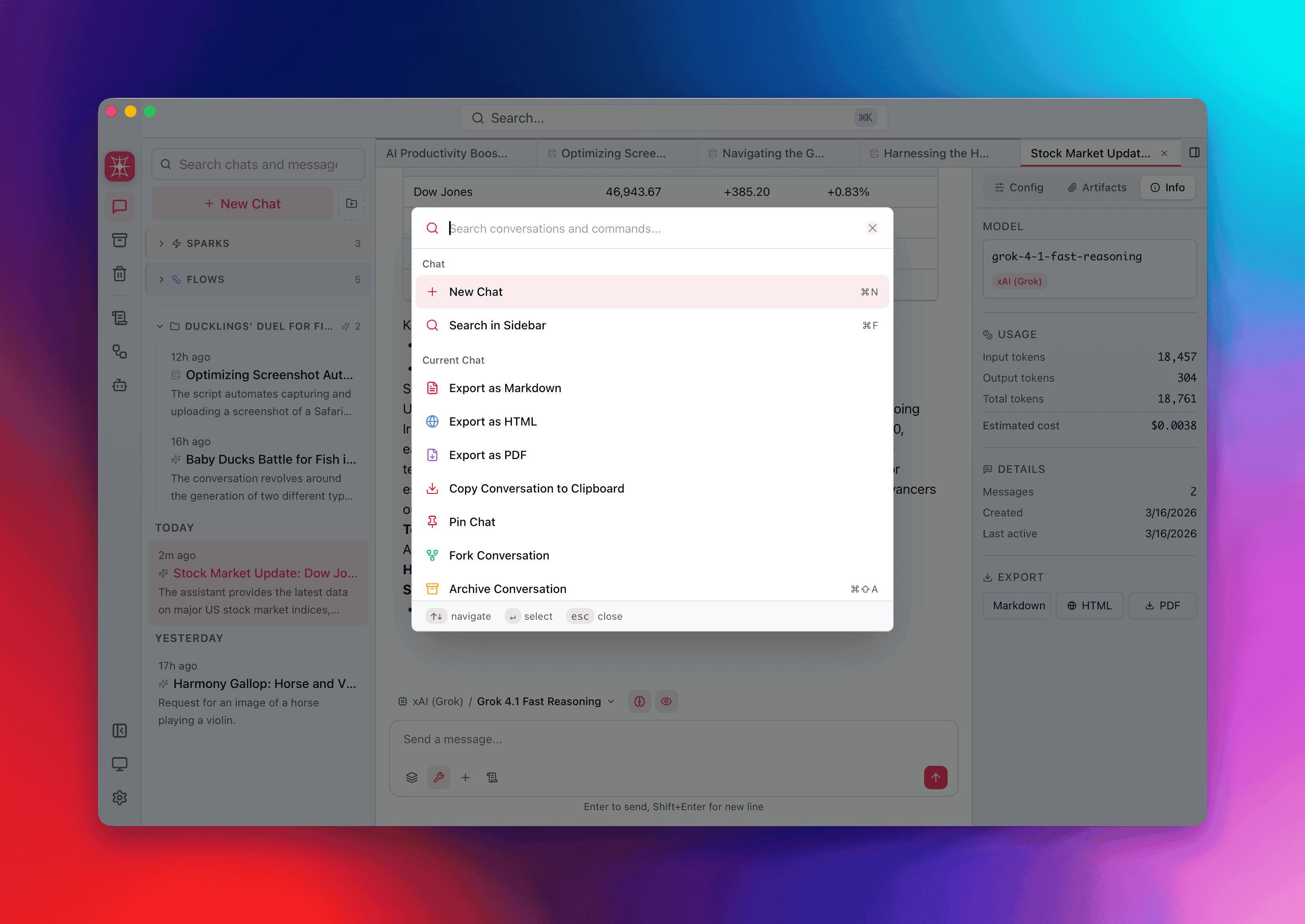
- Open the command palette (Cmd+K / Ctrl+K) to confirm input handling
What gets installed
Section titled “What gets installed”- Application binary — the native desktop runtime
- SQLite database — created on first launch, stores conversations, agents, and encrypted keys
- Config directory — preferences, agent definitions, AES-256 encrypted provider keys
No background services, no daemons, no cloud sync. QARK runs when you open it and stops when you close it.
Grant accessibility permission (macOS)
Section titled “Grant accessibility permission (macOS)”Sparks — the system-wide overlay — needs accessibility permission to capture selected text from other applications and paste results back. Without it, text capture and paste-based output actions silently fail.
To grant it:
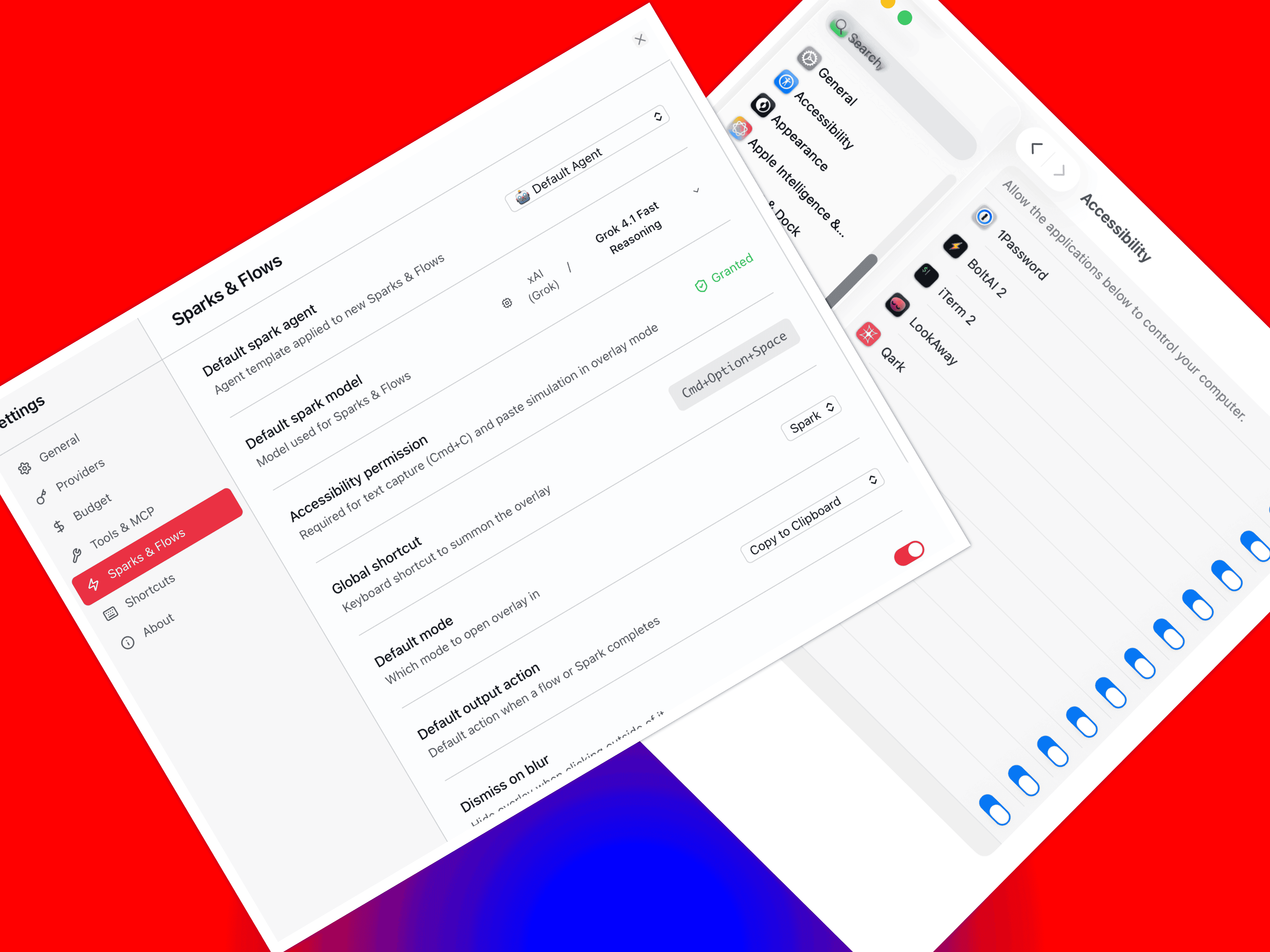
- Open Settings → Sparks & Flows
- Find Accessibility permission — it shows either Granted (green) or a Grant Access button
- Click Grant Access — macOS opens System Settings → Privacy & Security → Accessibility with QARK pre-listed
- Toggle QARK on
QARK polls for the permission after you click Grant Access, so the status updates automatically once you flip the switch — no restart needed.
What breaks without it
Section titled “What breaks without it”| Feature | Without permission |
|---|---|
| Text capture | Overlay opens but selected text from other apps is not captured |
| Paste at Cursor | Output copies to clipboard but the paste keystroke is not simulated — you have to paste manually |
| Insert Before / Insert After | Same as above — clipboard has the result, but automatic paste fails |
| Copy to Clipboard | Works fine — no accessibility permission needed |
| Open in Chat | Works fine — opens the main window directly |
On Windows and Linux, no accessibility permission is required. Keyboard simulation works through native platform APIs without extra grants.
Troubleshooting
Section titled “Troubleshooting”| Problem | Fix |
|---|---|
| Installer won’t launch | Check your OS version against the requirements above |
| ”Unidentified developer” warning | Approve the app in your OS security settings |
| Blank screen on launch | Update your graphics drivers — QARK uses hardware-accelerated rendering |
| Database lock error | Close duplicate QARK instances. Only one can access the database at a time. |