
Model Management
QARK fetches the full model list from each connected provider’s API and caches it for 5 minutes. Connect a provider, and every model it offers appears automatically — no manual entry.
Browse models
Section titled “Browse models”Open Settings → Providers → [Provider] to see all available models. The list refreshes every 5 minutes, so newly released models appear shortly after their API availability.
Filter by name, capability, or category to narrow results when a provider offers dozens of models.
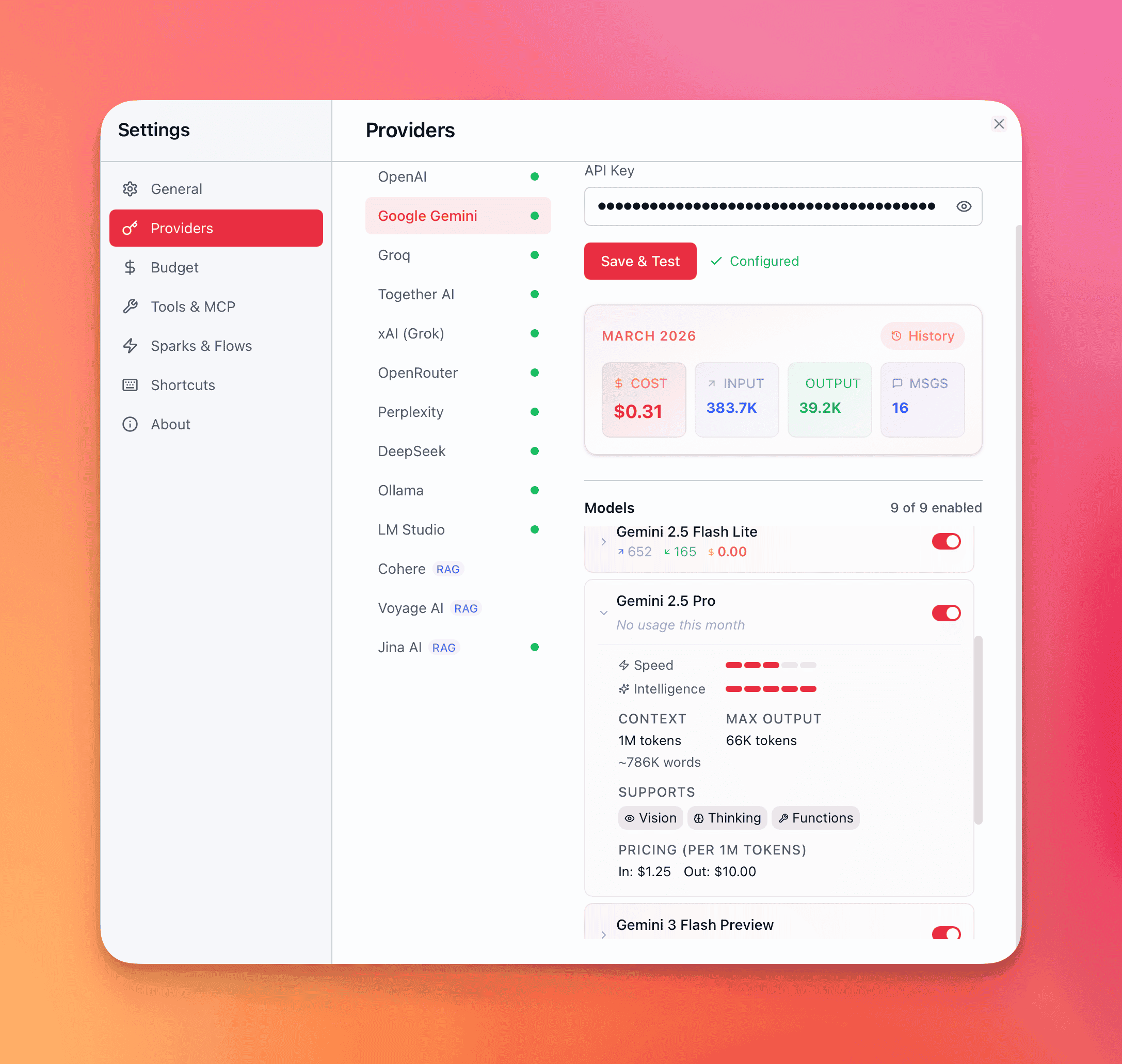
Model details
Section titled “Model details”Select any model to see its full spec sheet:
| Field | What it tells you |
|---|---|
| Context window | Maximum input tokens per request — ranges from 8K (Gemma 2 9B) to 2M (Grok 4.1 Fast) |
| Max output tokens | Upper bound on generated tokens per response — up to 128K on flagship models |
| Thinking mode | Whether the model supports chain-of-thought reasoning: adaptive (model decides), manual (you toggle), always (cannot disable), or none |
| Vision | Whether the model accepts image inputs — screenshots, diagrams, photos, documents |
| Tool use | Whether the model can call tools via the @mention system |
| Pricing | Input and output cost per million tokens, pulled from the provider. Thinking tokens may have separate pricing |
| Speed rating | Relative latency ranking — first-token time and tokens-per-second |
| Intelligence rating | Relative reasoning and output quality ranking |
These details come from QARK’s model registry, which tracks specs for every model across all providers. The registry updates with each app release.
Control visibility
Section titled “Control visibility”Hide models you don’t use to keep the model picker clean:
- Hide individual models — remove specific models from the picker without affecting others from the same provider.
- Hide model groups — suppress an entire family in one action (e.g., all legacy GPT-3.5 variants, all Gemma 2B models).
Hidden models won’t appear in the model picker or as category default options. Unhide them anytime from the provider’s settings panel.
Default models across 9 categories
Section titled “Default models across 9 categories”QARK uses models for more than conversation. Each category can have a different default model assigned:
| Category | What it powers |
|---|---|
| Chat | Primary conversational responses |
| Sparks | Quick completions from the global overlay |
| Compaction | Summarizing older messages when context fills up |
| Embedding | Converting text to vectors for document search |
| RAG Generation | Generating answers grounded in retrieved document chunks |
| Reranking | Cross-encoder re-scoring of search results |
| Image Extraction | Extracting text and structure from images in documents |
| Image Generation | Creating images from text prompts |
| Video Generation | Producing video from text or image prompts |
Set defaults in Settings → Providers → Model Defaults. QARK uses the assigned model for that category everywhere unless you override it per conversation.
Strategy tip: Assign a fast, cheap model for compaction (it runs frequently in long conversations) and a high-quality model for chat. Use a local Ollama model for embedding to avoid per-token costs entirely.
Switch models mid-conversation
Section titled “Switch models mid-conversation”You’re not locked into a model for the duration of a conversation. Open the model picker from any active conversation to switch. Your full conversation history carries over — the new model picks up with the entire context intact.
Practical uses:
- Draft with a fast model (GPT-4.1 Nano, Llama 3.1 8B), then switch to a frontier model (Claude Opus 4.6, GPT-5.4) for the final pass.
- Start with a thinking model for complex reasoning, switch to a non-thinking model for straightforward follow-ups.
- Compare outputs by switching models and regenerating the same message.
Each model’s provider accent color appears on the tab border, so you can see at a glance which model is active across split panes.
Budget management
Section titled “Budget management”QARK tracks every token and every dollar across all providers. You can set per-provider monthly spending limits and monitor usage in real time.
Set budgets
Section titled “Set budgets”Open Settings → Budget. Each connected provider has:
- Enable/disable toggle — turn budget enforcement on or off per provider.
- Monthly limit — set a dollar amount (e.g., $20/mo for OpenAI, $50/mo for Anthropic). The limit resets on the first of each calendar month.
Screenshot: Budget settings showing per-provider cards with progress bars, toggle switches, and monthly limit inputs
Cost tracking
Section titled “Cost tracking”Every LLM call records a cost entry to an append-only ledger:
| Tracked | Detail |
|---|---|
| Input tokens | Tokens sent to the model (your messages + context) |
| Output tokens | Tokens generated by the model |
| Thinking tokens | Chain-of-thought tokens (tracked separately — some models price these differently) |
| Cost (USD) | Calculated from the model’s per-million-token pricing |
| Purpose | What the call was for: chat, embedding, compaction, etc. |
| Model | Exact model used |
The cost ledger is append-only — entries survive even if you delete the conversation or messages they belong to. Historical spending data is never lost.
Per-message cost appears as a badge on each response (tokens in/out + USD). Per-conversation totals are visible in the Info panel.
Budget enforcement
Section titled “Budget enforcement”QARK checks your budget before every LLM call:
- At 80% of limit — a warning toast appears: “Approaching budget limit for [provider]. $X of $Y (Z%).” The message still sends.
- At 100% of limit — the message is blocked. QARK returns an error: “Monthly budget exceeded for [provider].” Switch to a different provider or increase the limit to continue.
Usage dashboard
Section titled “Usage dashboard”The budget dashboard in Settings → Budget shows:
Current month summary — total spending across all providers with a stacked bar chart. The top 3 spenders are color-coded; remaining providers are grouped as “Others.”
Spending timeline — the last 3 months (expandable), with month-over-month trend indicators (percentage up or down). Click any month to expand per-provider breakdown.
Provider cards — sorted by spending, each showing:
- Amount spent this month
- Progress bar: green (under 80%), yellow (80–99%), red (at or over 100%)
- Remaining budget
- Link to detailed usage history
Usage history — per-provider modal with monthly breakdown table: month, message count, input tokens, output tokens, cost. Expand any row to see model-level breakdown sorted by cost. All-time totals at the bottom.
Cost optimization strategies
Section titled “Cost optimization strategies”| Strategy | How |
|---|---|
| Cheap models for drafts | Use GPT-4.1 Nano or Llama 3.1 8B for iteration, frontier models for final output |
| Local models for zero cost | Ollama or LM Studio for embedding, compaction, or low-stakes chat |
| Token budget context strategy | Cap how many tokens of history are sent per request |
| Auto-compact threshold | Lower the compaction threshold to summarize context sooner, reducing input tokens |
| Skip reranking | Reranking adds a second LLM call per search — disable it if vector search alone is accurate enough |
| Monitor thinking tokens | Models with always-on thinking (Grok 4, DeepSeek R1) generate thinking tokens on every message — these add up |