
Document Search
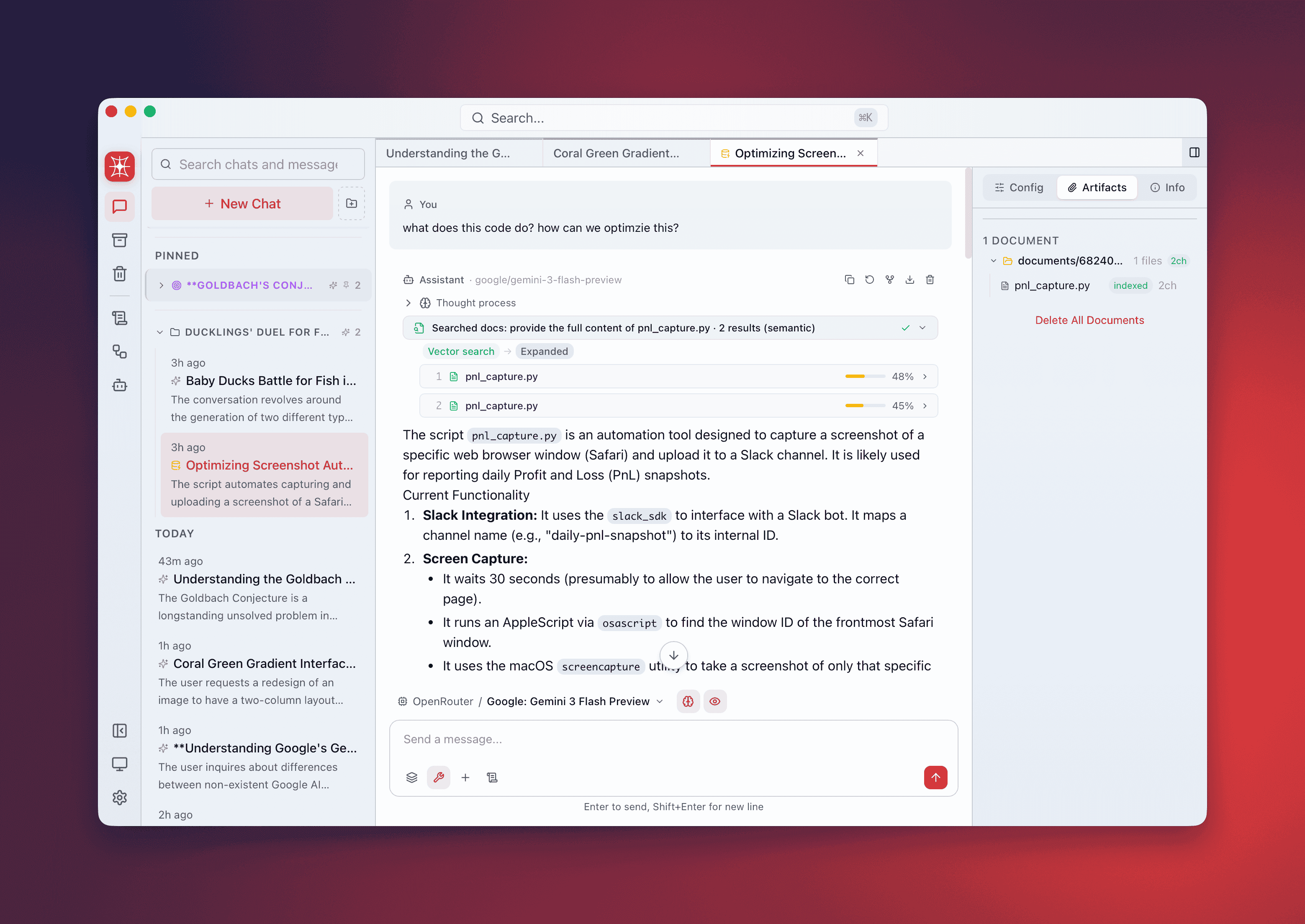
Type @document-search followed by your query to search through documents attached to the conversation. This tool is the front-end to QARK’s RAG pipeline — it takes your query, runs it against indexed document chunks, and returns the most relevant passages with citations.
Attach Documents
Section titled “Attach Documents”Before you can search, attach documents to the conversation. QARK provides several ways to do this:
- Type
@/or@.in the composer — opens a native file picker directly from the keyboard. The@/and@.characters are removed from your input automatically. - Attach menu (+) — click the + button in the composer to access:
- Add Files — opens a file picker for individual documents
- Add Folder — opens a folder browser, recursively scans for supported files
- Add Selected in Finder — grabs the current Finder selection (macOS) without opening a dialog
- Clipboard History — browse and attach from your recent clipboard entries
- Drag and drop — drag files or folders directly onto the composer. Folder structure is preserved.
- Paste — paste images directly from your clipboard into the composer.
Supported file types include PDF, DOCX, XLSX, PPTX, Markdown, HTML, plain text, EPUB, and most source code formats. See File Attachments & Auto-Routing for the full routing logic that determines whether files go to vision or RAG.
Trigger a Search
Section titled “Trigger a Search”Type @document-search in any message. The tool activates and displays the current search strategy in the UI so you know exactly how your query will be processed.
Search Strategies
Section titled “Search Strategies”QARK supports 3 query strategies that determine how your search terms are matched against document content:
| Strategy | How It Works | Best For |
|---|---|---|
| Semantic | Embeds your query and finds chunks with the closest vector similarity | Direct questions, specific lookups |
| HyDE (Hypothetical Document Embedding) | Generates a hypothetical answer first, then searches for chunks similar to that answer | Exploratory questions where you’re not sure of the exact terminology |
| Step-back | Reformulates your query into a broader, more abstract version before searching | Narrow questions that need broader context to answer well |
The default mode is auto, which lets the AI agent select the best strategy based on your query. You can override this in the tool settings.
Search Results
Section titled “Search Results”Each search result includes:
- Relevance score — a numerical confidence rating showing how closely the chunk matches your query
- Result count — the total number of matching chunks returned
- Source citation — which document and section the passage came from
- Inline citation badges — clickable references that appear in the agent’s response, linking back to the source passage
Inline Citations
Section titled “Inline Citations”When the agent uses information from document search results, it inserts citation badges directly in the response text. Each badge references a specific document chunk. Click the badge to jump to the source passage and verify the information.
RAG Processing Progress
Section titled “RAG Processing Progress”When you attach new documents, the RAG pipeline processes them through several stages. The UI displays progress indicators for each stage:
- Parsing — extracting text from the document format (PDF, DOCX, etc.)
- Chunking — splitting content into overlapping segments
- Embedding — generating vector representations of each chunk
- Indexing — storing embeddings for retrieval
This progress display is visible during the initial indexing and whenever new documents are added mid-conversation.
Combine with Other Tools
Section titled “Combine with Other Tools”Document search works alongside other tools in the same conversation. Common patterns:
- Document search + web search — verify claims in your documents against live web sources
- Document search + thinking — enable thinking to reason over multiple retrieved passages before synthesizing an answer
- Document search + web fetch — pull in a URL to supplement your attached documents with additional context