
Video Generation
Type @video-generation in the composer to generate videos inline. The agent sends your prompt to the configured video backend, waits for rendering, and delivers the result directly into the conversation.
Backends and Models
Section titled “Backends and Models”QARK connects to 3 video generation providers. Configure your preferred backend in Settings → Models → Video. Each provider requires its own API key in Settings → Providers.
OpenAI
Section titled “OpenAI”| Model | Description | Resolutions | Durations | Price per Second |
|---|---|---|---|---|
| Sora 2 | Flagship video generation with synchronized audio at 720p | 1280×720, 720×1280 | 5, 10, 15, 20s | $0.10 |
| Sora 2 Pro | Higher resolution support up to 1792×1024 with superior quality | 1280×720, 720×1280, 1792×1024, 1024×1792 | 5, 10, 15, 20s | $0.30–$0.50 |
Google Gemini
Section titled “Google Gemini”| Model | Description | Resolutions | Durations | Price per Second |
|---|---|---|---|---|
| Veo 2 | Google video generation at 720p | 720p | 4, 6, 8s | $0.35 |
| Veo 3 | Native audio generation with higher fidelity output | 720p, 1080p | 4, 6, 8s | $0.40 |
| Veo 3 Fast | Speed-optimized Veo 3 variant at reduced cost with audio | 720p, 1080p | 4, 6, 8s | $0.15 |
| Veo 3.1 | Latest model — 4K support, portrait orientation, video extension, reference image guidance | 720p, 1080p, 4K | 4, 6, 8s | $0.40–$0.60 |
| Veo 3.1 Fast | Fast variant of Veo 3.1 with 4K support at reduced cost | 720p, 1080p, 4K | 4, 6, 8s | $0.15–$0.35 |
All Gemini models support 16:9 and 9:16 aspect ratios.
| Model | Description | Resolutions | Durations | Price per Second |
|---|---|---|---|---|
| Grok Imagine Video | Flexible durations up to 15 seconds with diverse aspect ratios | 480p, 720p | 1–15s | $0.050 |
Supports aspect ratios: 1:1, 16:9, 9:16, 4:3, 3:4, 3:2, 2:3.
Configure Generation Parameters
Section titled “Configure Generation Parameters”Control the output by specifying parameters in your prompt or through the tool’s input schema:
- Duration — Set the target length in seconds. Available range depends on the model (OpenAI: 5–20s, Gemini: 4–8s, xAI: 1–15s).
- Resolution — Higher resolutions increase cost. Veo 3.1 supports up to 4K; Sora 2 Pro up to 1792×1024.
- Aspect ratio — Select from supported ratios per model. QARK validates your selection before dispatching.
View and Download Results
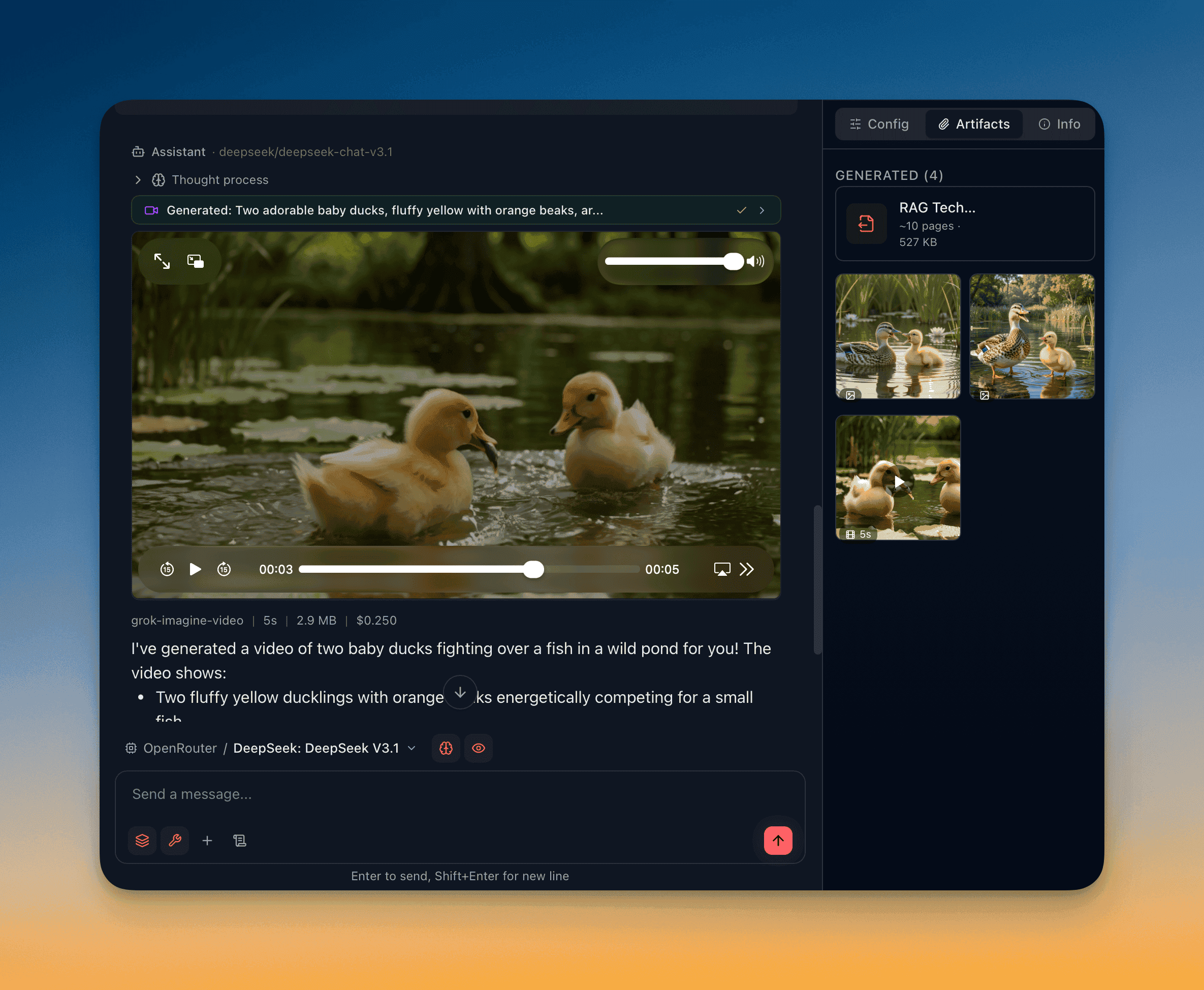
Section titled “View and Download Results”Generated videos render in an inline video player directly within the conversation. The player supports play/pause, scrubbing, and fullscreen.
A Download button appears below the video player. Click it to save the video file to your local filesystem.
Tips for Better Results
Section titled “Tips for Better Results”- Be specific about motion — Describe what moves, in which direction, and at what speed. “A drone rising over a coastal cliff at sunrise” produces better output than “a beach scene.”
- Specify style upfront — Include visual style cues (cinematic, hand-drawn, stop-motion) in the first sentence of your prompt.
- Iterate with the same seed — Some backends support seed values. Lock the seed and adjust your prompt to refine a specific scene without starting from scratch.